Fix the Discord Update Failed Loop Fast
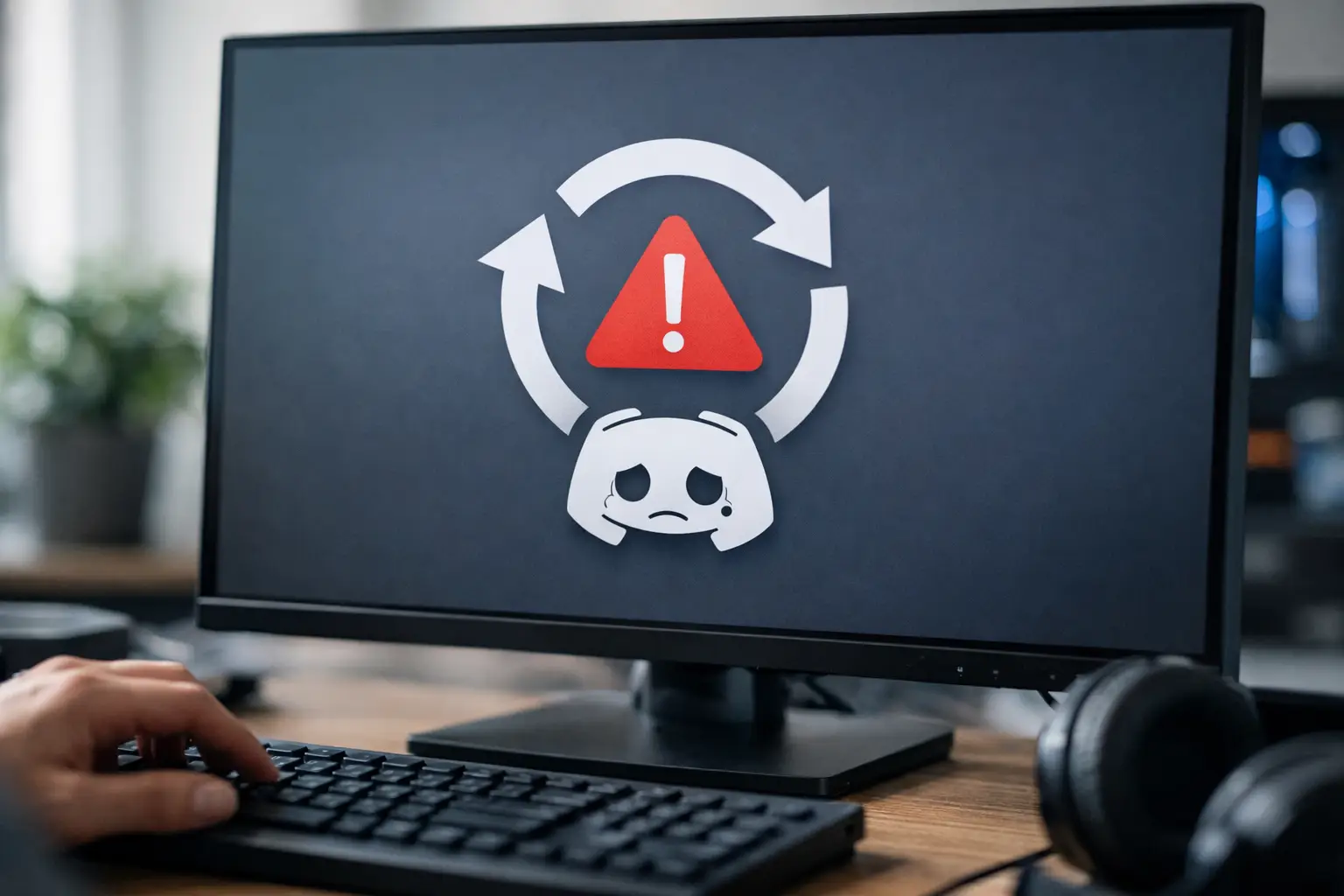
If Discord keeps reopening, retrying, and throwing the same error, you are probably stuck in a discord update failed loop. It usually looks worse than it is. In most cases, Discord is failing to replace old update files, connect to its update service, or launch with the permissions it needs.
The fastest way out is to work from the least disruptive fix to the more aggressive ones. That saves time and avoids deleting anything you do not need to touch.
What causes a discord update failed loop?
Discord normally updates itself in the background when the app starts. The loop begins when that process gets interrupted and the app keeps trying the same failed update again and again.
On Windows, the most common cause is a corrupted update file inside Discord’s local app data folders. Security software can also interfere, especially if it blocks file replacement or quarantines a Discord process mid-update. In other cases, the issue is tied to a bad cache, limited permissions, VPN or proxy routing, or a temporary network problem.
On Mac, the same pattern can happen, but it is often tied to app permissions, damaged app files, or an incomplete drag-and-drop install.
Start with the fastest fixes
Before you delete folders or reinstall anything, close Discord completely. Do not just click the X and assume it is gone.
On Windows, open Task Manager and end every Discord-related process. If you see Discord, Update, or anything similar still running, stop it. Then launch Discord again as administrator by right-clicking the app and choosing Run as administrator. If the loop was caused by a permission problem, this can fix it immediately.
If that does not work, restart your computer. It sounds basic, but a pending process lock can keep Discord from replacing update files. A reboot clears that out faster than hunting for every background process manually.
You should also check whether your internet connection is stable enough to finish the update. If you are on public Wi-Fi, a strict work network, VPN, or proxy, try a different connection if possible. Discord updates can fail when traffic is filtered or rerouted.
Fix the Discord update failed loop on Windows
Delete Discord cache and update files
If Discord keeps failing at the same point, the next move is clearing the folders that usually hold broken update data.
First, close Discord completely in Task Manager. Then press Windows + R, type %appdata%, and press Enter. Find the Discord folder and delete it. After that, go back to the Run box, type %localappdata%, and press Enter. Delete the Discord folder there too.
This does not usually remove your account. It mainly clears local app files, cached update data, and temporary settings that may be causing the loop.
Once both folders are removed, download and install Discord again using a fresh installer. In many cases, this is the fix that ends the discord update failed loop for good.
Disable antivirus or firewall briefly
Some antivirus tools treat Discord updates like suspicious behavior because the app modifies its own files during install. That can break the update process midway.
Temporarily disable third-party antivirus or firewall software, then run the Discord installer again. If Discord updates normally after that, add it as an allowed app before turning your security software back on. If you rely only on Windows Security, you usually do not need to disable it unless you have already confirmed it is blocking Discord.
The trade-off here is obvious. Do not leave your protection off longer than necessary, and avoid downloading anything else while testing.
Rename the Update.exe file only if needed
This is not the first fix to try, but it can help when Discord’s updater itself is stuck.
Go to the Discord installation folder, usually under LocalAppData, and look for Update.exe. Rename it to something like UpdateOld.exe, then run a fresh Discord installer. That forces Discord to create a new updater instead of reusing the damaged one.
If you are not comfortable editing app files manually, skip this and reinstall after deleting the AppData folders. That is safer for most users.
Fix the issue on Mac
Remove the app and reinstall cleanly
On Mac, quit Discord fully first. If needed, use Activity Monitor to force quit it. Then open Applications and move Discord to Trash.
After that, open Finder and check the Library folders for leftover Discord support files. If you know your way around macOS, remove Discord-related cache and application support files before reinstalling. Then download a fresh copy and drag it into Applications again.
If Discord was partially installed or blocked during a previous update, a clean reinstall usually resets the process.
Check permissions and security settings
If macOS is blocking part of the app, the update may never complete. Open System Settings and check whether Discord has the permissions it needs, especially if you recently changed security settings or migrated from another Mac.
Also look for any warning that macOS prevented the app from opening fully. If you see one, allow the app and retry the install.
Network fixes worth trying
If Discord’s files seem fine but the app still cannot update, the problem may be the route between your device and Discord’s update servers.
Try turning off your VPN or proxy and then launching Discord again. If you use custom DNS, switch back to automatic temporarily. You can also flush your DNS cache on Windows by opening Command Prompt as administrator and running ipconfig /flushdns. Then restart the app.
Another practical step is changing networks. If Discord fails on your current connection but updates fine on mobile hotspot or home Wi-Fi, the issue is likely network-level filtering rather than the app itself.
When reinstalling is the fastest option
There is a point where chasing the exact failed file wastes more time than a clean reinstall. If you have already closed background processes, deleted AppData folders, and ruled out antivirus interference, reinstalling is usually the fastest path.
On Windows, uninstall Discord from Apps or Programs first if it still appears there. Then manually remove the Discord folders from %appdata% and %localappdata%. Reboot, install a fresh copy, and sign back in.
On Mac, remove the app, clear leftover support files if you can, restart the system, and reinstall. For most everyday users, this is simpler than digging through updater logs.
If the discord update failed loop still will not stop
At that point, the issue may not be local to your device. Discord occasionally has service-side incidents or broken update rollouts that affect a chunk of users at once. If you have tried the standard fixes and the problem started suddenly, wait a bit and test again later.
You should also make sure your operating system is current enough to support the latest Discord release. Older Windows builds and outdated macOS versions can cause repeated install or update failures. The app may not always explain that clearly.
Another workaround is using Discord in your web browser while you sort out the desktop app. It is not a true fix, but it keeps you connected for classes, work chats, gaming groups, or creator communities without losing more time.
Best order to try the fixes
If you want the shortest path, use this order: fully close Discord, restart your computer, run Discord as administrator, disable VPN or proxy, delete Discord folders from AppData or Library, then reinstall with a fresh installer. Only move into firewall exceptions, updater file changes, or deeper network troubleshooting if those steps fail.
That order works because it handles the most common causes first – stuck background processes, bad cached update files, and blocked permissions – without forcing you into advanced fixes right away.
For most users, the problem is local and fixable in minutes. The key is not repeating the same launch attempt over and over and hoping the updater suddenly behaves differently. Start clean, remove damaged files, and give Discord a fresh install path. If you need a fast rule to remember from Owkid, it is this: close it fully, clear the local files, and reinstall before you spend an hour chasing edge cases.
Once Discord opens normally again, leave automatic updates enabled. The less you interrupt startup during an update, the less likely you are to end up back in the same loop.