WhatsApp Web Not Connecting? 7 Fixes That Actually Work
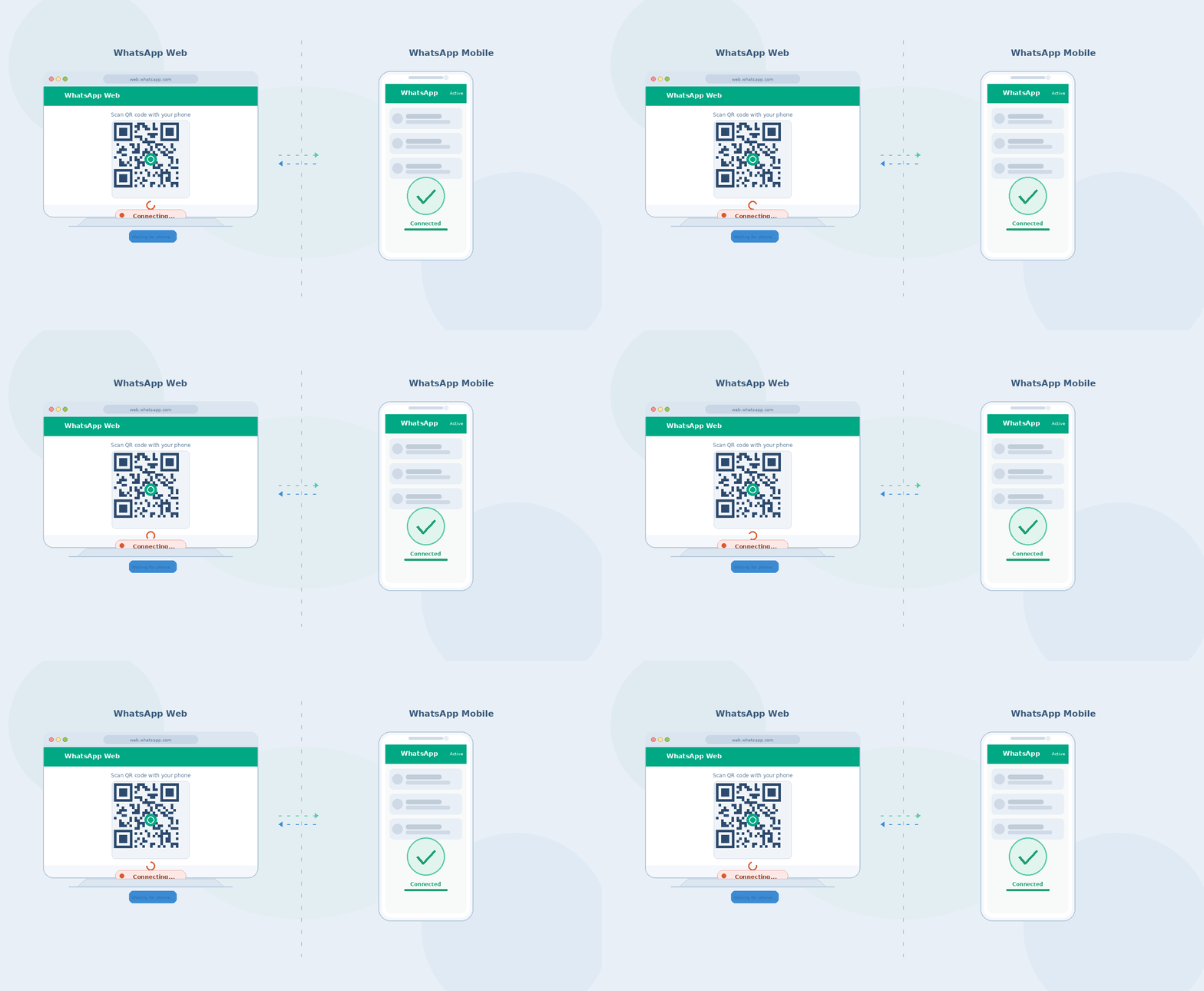
Why WhatsApp Web Loses Its Connection
In most cases, WhatsApp Web connection failures trace back to one of three root causes: a stale browser session, a phone that’s on a different network than expected, or a browser extension that intercepts WebSocket traffic. The good news is that all of these are fixable in under five minutes.
Fix 1: Re-scan the QR Code
- On WhatsApp Web, click Link a Device.
- Open WhatsApp on your phone → tap the three-dot menu → Linked devices.
- Tap Link a Device and scan the new QR code.
Fix 2: Force-Refresh the Browser Tab
- Press Ctrl + Shift + R (Windows) or Cmd + Shift + R (Mac) to hard-reload.
- This clears cached scripts that may be outdated after a WhatsApp update.
Fix 3: Clear Browser Cookies for web.whatsapp.com
- In Chrome: Settings → Privacy → Cookies → See all site data.
- Search for whatsapp, delete all entries.
- Reload web.whatsapp.com and re-link your device.
Fix 4: Disable Browser Extensions
- Open an Incognito / Private window (extensions are off by default).
- Navigate to web.whatsapp.com — if it connects, an extension is the culprit.
- Disable extensions one by one to find the conflict (ad blockers and VPN extensions are common offenders).
Fix 5: Check Your Phone’s Internet Connection
- WhatsApp Web streams data through your phone, not your computer.
- Open WhatsApp on your phone and try sending a message — if it fails, your phone’s connection is the issue.
- Toggle airplane mode off/on, or switch from Wi-Fi to mobile data temporarily.
Fix 6: Check WhatsApp Server Status
- Visit downdetector.com/status/whatsapp to see if there’s a widespread outage.
- If hundreds of users are reporting issues, wait 10–30 minutes and try again.
Fix 7: Use a Different Browser
- WhatsApp Web works best on Chrome, Edge, and Firefox.
- If you’re on Safari, switch to Chrome and test again.
- Older versions of Firefox (below v100) sometimes fail to maintain the WebSocket connection.
Pro Tip: If you use WhatsApp Web daily, bookmark web.whatsapp.com and avoid using the “Open in new tab” option from search results — sometimes Google’s cached version redirects to an outdated URL.
Still Not Working?
If none of the above resolved the issue, unlink all devices from your phone (Linked Devices → Log out from all devices) and start fresh. Also check out our guide on Instagram Login Loop — both issues share a common root cause around session management.












1 comment