Claude AI Not Working? 5 Common Errors Fixed
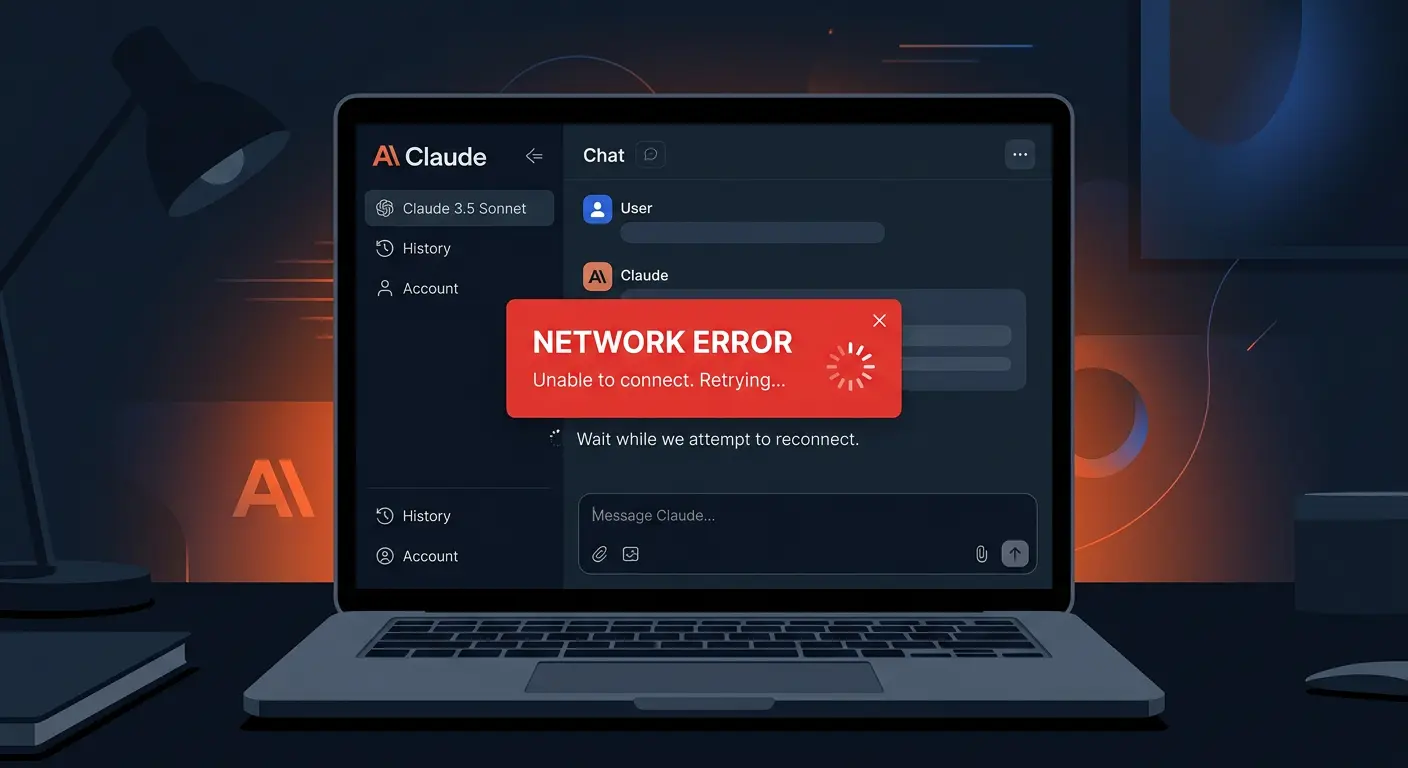
Why Claude Stops Working
Claude’s problems almost always fall into one of three buckets: a stale session, an overloaded context window, or a platform incident on Anthropic’s end. The fix for most errors takes under two minutes.
Fix 1: Check Anthropic’s Status Page
- Go to status.anthropic.com — Anthropic posts real-time incident updates there.
- Look for “Claude.ai” specifically. The API and the web interface can have separate incidents.
- If there is an active incident, wait for it to resolve before troubleshooting locally.
Fix 2: Start a New Conversation
- Click New chat in the left sidebar.
- Repeat your request in the fresh thread. Claude’s context window has limits — very long conversations can cause issues specific to that thread.
- If the new conversation works, the old thread had a context problem. Summarize what you need and continue in the new chat.
Fix 3: Clear Browser Cache for claude.ai
- In Chrome, click the lock icon in the address bar → Cookies and site data → delete all entries for claude.ai.
- In Firefox, press Ctrl + Shift + Delete → check Cookies and Site Data → clear for claude.ai only.
- Reload and log in again. This fixes most “Claude keeps logging me out” and blank response issues.
Fix 4: Switch to a Different Model
- If you have Claude Pro, click the model selector at the top of the chat window.
- If Claude 3.5 Sonnet is unresponsive, try Claude 3 Haiku — it runs on separate infrastructure and often responds during Sonnet load spikes.
- Free tier users share Claude Instant; if that endpoint is down, waiting for the incident to clear is the only option.
Fix 5: Test the API Directly
- If you have an Anthropic API key, run a quick test with curl or a REST client.
- A successful API response while claude.ai is broken confirms the issue is isolated to the web frontend, not the model itself.
- In that case, using the API via a third-party client is a valid workaround while the UI recovers.
Pro Tip: Claude’s interface caches your conversation list heavily. If you see stale history or can’t delete chats, press Ctrl + Shift + R to force a full reload of the interface assets.
Related Fixes
If Claude is down and you need an AI right now, see our guide on what to do when ChatGPT is also down — both share similar fallback options including Google Gemini and Perplexity.














2 comments