Google Drive Not Syncing: Fix It in 5 Steps
Understanding Drive Sync Failures
Google Drive for Desktop can fail to sync for several reasons: insufficient Google account storage, a file type restriction, a permissions issue on a shared folder, or the desktop client simply getting into a bad state. The diagnostic below takes about 2 minutes and will identify the cause before you try any fix.
Step 1: Check Google Account Storage
- Go to drive.google.com/settings/storage in a browser.
- If your storage is at 100%, Drive stops syncing new files immediately. Delete files or buy more storage before proceeding.
- Storage counts Gmail, Drive, and Photos together. A full Gmail inbox can block Drive sync without any Drive-side error.
Fix 1: Pause and Resume Syncing
- Click the Google Drive icon in your system tray (Windows) or menu bar (Mac).
- Click Pause syncing. Wait 5 seconds. Click Resume syncing.
- This interrupts and restarts the sync process, which resolves many stalled sync issues without requiring a full restart.
Fix 2: Quit and Restart Drive for Desktop
- Click the Drive tray icon → gear icon → Quit.
- Wait 10 seconds.
- Reopen Google Drive for Desktop from your Applications folder or Start menu.
- Check if the sync queue clears within a few minutes.
Fix 3: Check for Problematic Files
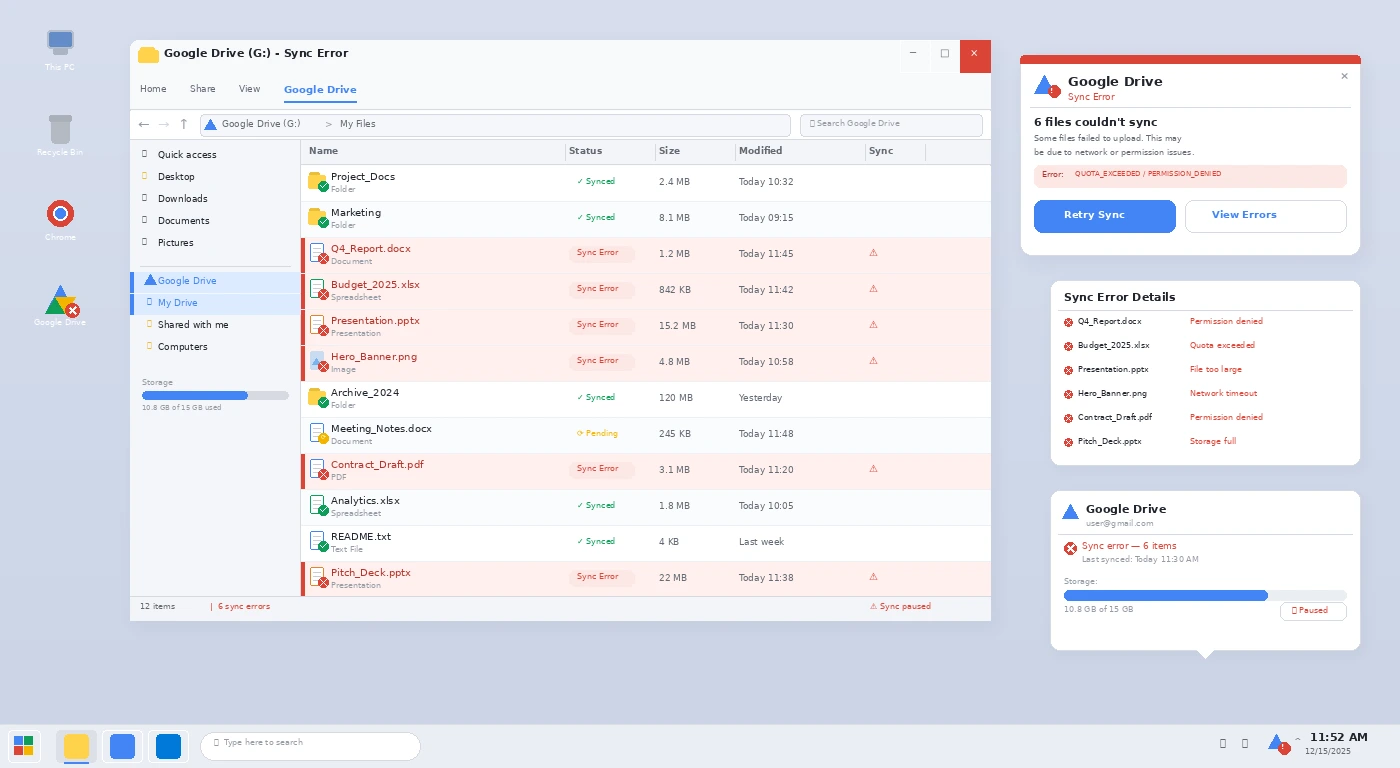
- Google Drive cannot sync files with certain characters in the name (
/ : * ? " < > |), files above 5 TB, or certain Google-restricted file types. - Click the Drive tray icon — if there are sync errors, it will show a warning. Click it to see which files are failing and why.
- Rename or move the problematic files to unblock the sync queue.
Fix 4: Disconnect and Reconnect Your Google Account
- Click the Drive tray icon → gear icon → Preferences.
- Click your account name → Disconnect account.
- Sign back in. Drive will re-index and restart the sync from scratch. This typically takes 5–30 minutes depending on your file count.
Fix 5: Reinstall Drive for Desktop
- Uninstall Google Drive for Desktop from Settings → Apps (Windows) or Drag to Trash (Mac).
- Download the latest version from drive.google.com/drive/download.
- Reinstall and sign in. This resolves corrupted local database issues that persistent restarts cannot fix.
Pro Tip: Drive for Desktop logs are stored at
%AppData%GoogleDriveFSLogs (Windows) or ~/Library/Application Support/Google/DriveFS/Logs (Mac). If you need to contact Google support, attach these logs — they contain the exact reason each file failed to sync.Related Guides
If Zoom is also giving you trouble on the same machine, see our Zoom camera not working fix. For Microsoft Teams sync issues, see our Teams not loading guide.