Password Manager Not Autofilling: Chrome and Firefox Fix
Why Autofill Breaks
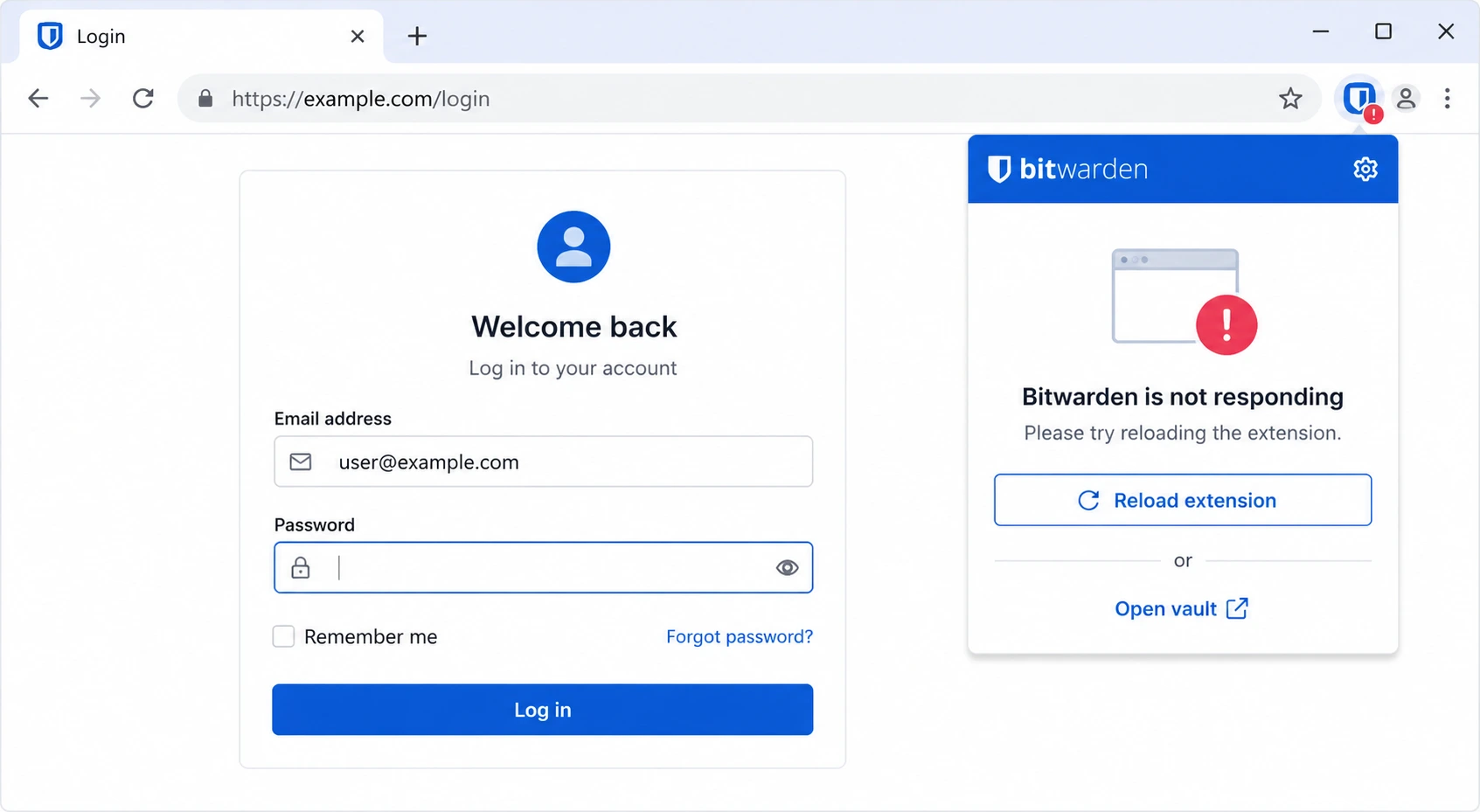
Password manager autofill relies on a browser extension that hooks into page input fields. Three things break this: the extension was disabled (often by a browser update), the site structure changed so the extension no longer recognizes the login fields, or the password manager’s integration with the browser was broken during an update.
Fix 1: Check the Extension Is Enabled
- Chrome: navigate to
chrome://extensionsand verify your password manager extension is toggled On. - Firefox: navigate to
about:addons→ Extensions → verify the extension is Enabled. - If the extension is disabled, enable it and reload the login page.
- Also check that the extension has permission to run on all sites (not just specific sites).
Fix 2: Enable Autofill in the Extension Settings
- Click the password manager icon in your browser toolbar → open Settings or Preferences.
- Look for an Autofill or Auto-fill logins setting — ensure it is toggled On.
- For Bitwarden: Settings → Options → enable “Auto-fill on Page Load” and “Show Auto-fill Menu on Form Fields.”
- For 1Password: extension icon → settings → “Autofill” → ensure enabled.
Fix 3: Disable the Browser’s Built-In Password Manager
- Chrome and Firefox have built-in password managers that conflict with third-party extensions.
- Chrome: Settings → Autofill and passwords → Google Password Manager → Settings → turn off “Offer to save passwords.”
- Firefox: Settings → Privacy & Security → Logins and Passwords → uncheck “Ask to save logins and passwords for websites.”
- After disabling the built-in manager, reload the login page and test autofill.
Fix 4: Pin the Extension and Use the Keyboard Shortcut
- Some sites block extension popups on the page itself. Use the keyboard shortcut to trigger autofill instead.
- Bitwarden: Ctrl + Shift + L (Windows) or Cmd + Shift + L (Mac) to autofill the focused login form.
- 1Password: Ctrl + (Windows) or Cmd + (Mac).
- LastPass: click the extension icon → select the credential manually.
Fix 5: Reinstall the Extension
- Remove the extension from
chrome://extensionsorabout:addons. - Reinstall it from the Chrome Web Store or Firefox Add-ons.
- Log back into the extension and test on a known-working site like github.com or gmail.com.
Pro Tip: If autofill works on most sites but not on one specific site, the site likely uses a non-standard login form. Use the keyboard shortcut (Fix 4) to trigger autofill manually, or save the login URL in your password manager using the exact URL of the login page rather than the home page.
Related Guides
If your VPN is interfering with password manager sync, see our VPN keeps disconnecting guide. For Google Drive issues on the same machine, see our Google Drive not syncing fix.