Microsoft Teams Not Loading Messages: 6 Solutions
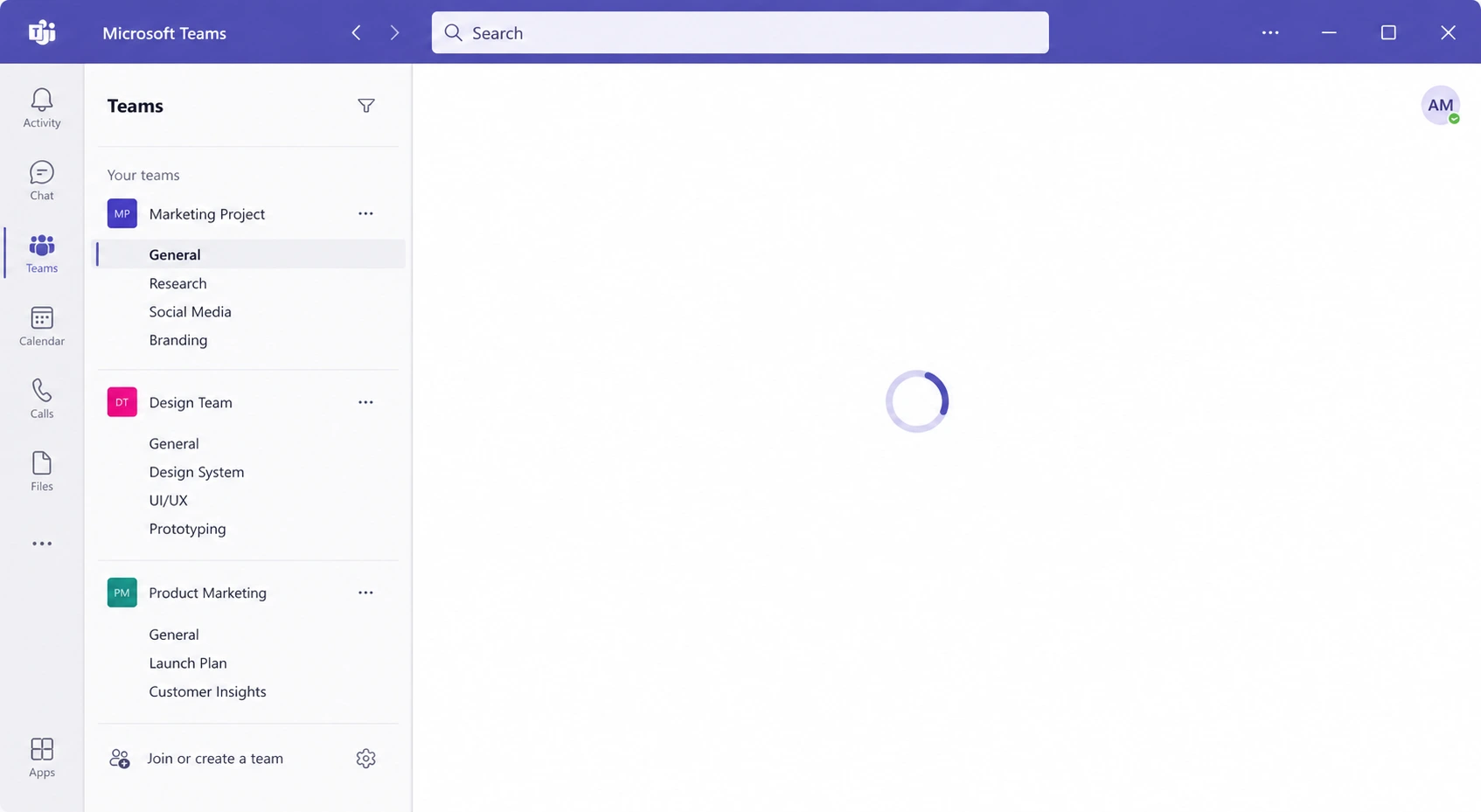
Why Teams Gets Stuck
Microsoft Teams is an Electron-based application that caches a significant amount of data locally. When that cache becomes stale or corrupted — which happens after updates, account switching, or network changes — Teams can fail to load messages, show an infinite spinner, or display content from weeks ago instead of the current feed.
Fix 1: Force-Quit and Restart Teams
- On Windows: right-click the Teams icon in the system tray → Quit. Then open Task Manager and end any remaining Teams.exe processes.
- On Mac: right-click the Teams icon in the Dock → Quit. Or press Cmd + Option + Esc → force quit Teams.
- Reopen Teams. If the issue is a frozen render process, this resolves it immediately.
Fix 2: Clear the Teams Cache
Windows:
- Quit Teams completely.
- Press Win + R → type
%appdata%MicrosoftTeams→ press Enter. - Delete the contents of these folders (not the folders themselves): Cache, blob_storage, databases, Local Storage.
- Restart Teams.
Mac:
- Quit Teams.
- In Finder → Go → Go to Folder:
~/Library/Application Support/Microsoft/Teams - Delete the same folders as above. Restart Teams.
Fix 3: Sign Out and Back In
- Click your profile picture → Sign out.
- Close Teams fully, wait 30 seconds, reopen.
- Sign back in. This forces Teams to re-fetch your channel and message data from Microsoft’s servers.
Fix 4: Check Microsoft 365 Service Status
- Go to status.office365.com or the Microsoft 365 Admin Center → Service health.
- If Teams is listed with a degraded or outage status, the problem is on Microsoft’s end. Wait for the incident to resolve.
Fix 5: Use Teams Web Version as a Workaround
- Open teams.microsoft.com in a browser.
- If messages load correctly in the browser but not the desktop app, the issue is isolated to the desktop client cache or installation.
- Continue with Fix 6 to resolve the desktop app.
Fix 6: Reinstall Microsoft Teams
- Uninstall Teams from Settings → Apps (Windows) or by dragging to Trash (Mac).
- Also delete the Teams cache folder (see Fix 2 location) after uninstalling.
- Download and install the latest version from microsoft.com/en-us/microsoft-teams/download-app.
Pro Tip: Teams has two versions: the classic desktop app and the “New Teams” (2024). If you’re on classic Teams and it’s giving you problems, switching to New Teams (the toggle at the top of the app) often resolves persistent loading issues — it has a significantly rewritten caching layer.
Related Guides
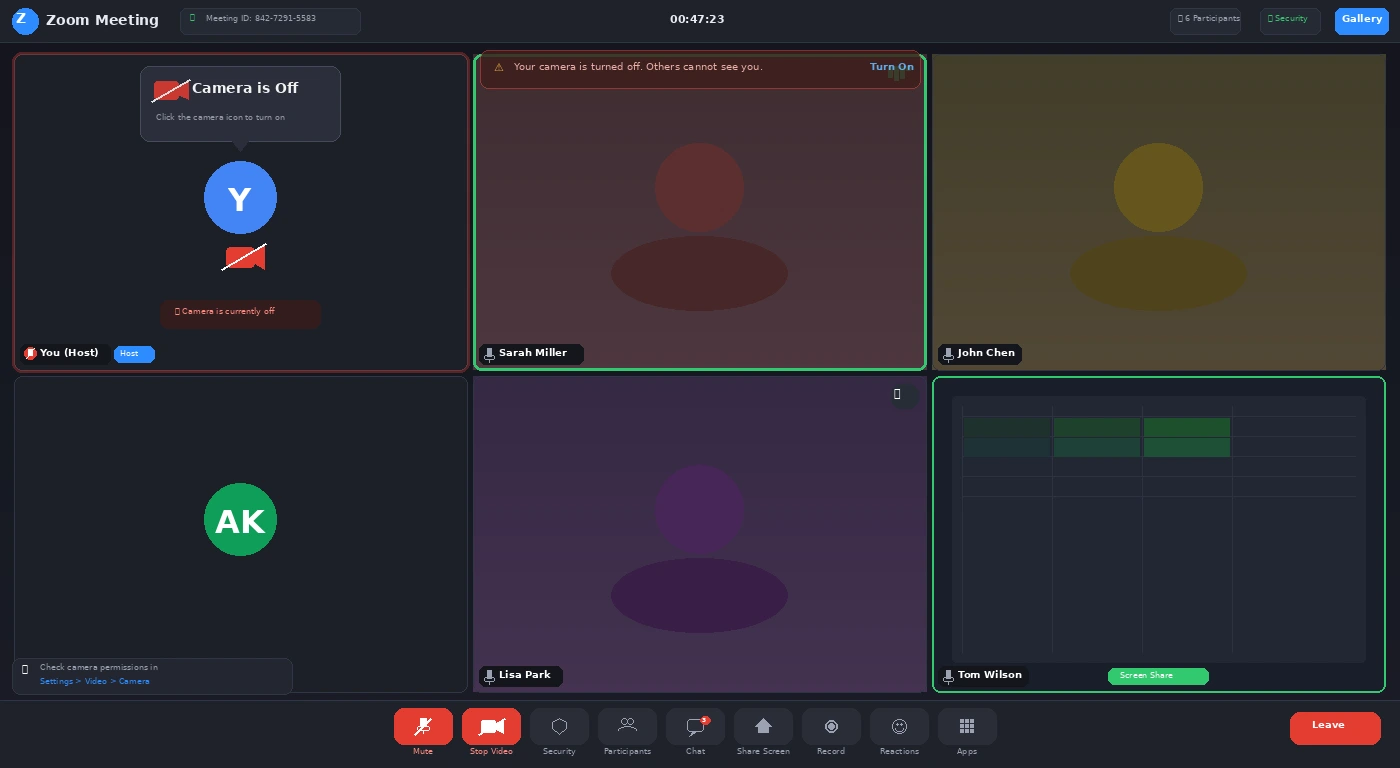
For Zoom camera issues, see our Zoom camera not working fix. For Google Drive sync problems, see our Google Drive not syncing guide.












1 comment