Zoom Camera Not Working: Quick Fixes for All Platforms
The Three Camera Problem Categories
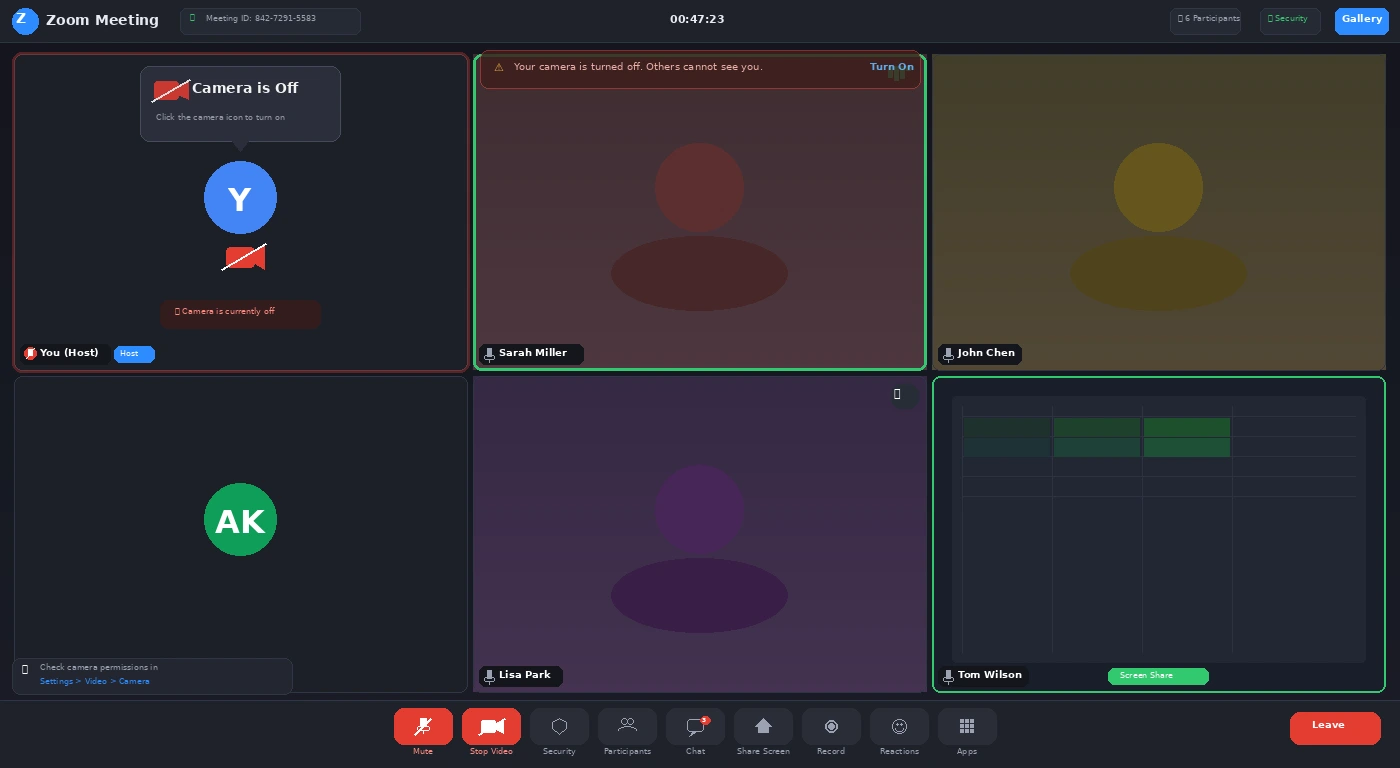
Zoom camera failures almost always fall into one of three categories: Zoom doesn’t have permission to access the camera, another app has locked the camera (only one app can use a camera at a time), or the wrong camera is selected in Zoom’s settings. Work through each in order.
Fix 1: Check OS-Level Camera Permissions
Windows 11/10:
- Settings → Privacy & Security → Camera.
- Ensure “Camera access” is On at the top, and that Zoom (or “Desktop apps”) is toggled on in the list below.
macOS:
- System Settings → Privacy & Security → Camera.
- Ensure Zoom has the checkbox ticked.
After changing permissions, restart Zoom completely.
Fix 2: Close Other Apps Using the Camera
- Only one application can use a webcam at a time. If Teams, Skype, OBS, or your browser webcam is active, Zoom will show a black screen.
- On Windows, open Task Manager (Ctrl + Shift + Esc) and look for processes that might be using the camera.
- On Mac, no two apps can share a camera (unless on macOS Monterey+). Quit all video apps before opening Zoom.
Fix 3: Select the Correct Camera in Zoom
- In a Zoom meeting, click the small arrow (^) next to the camera icon in the toolbar.
- A list of available cameras appears. Select your webcam by name.
- If you have a virtual camera (OBS, Snap Camera), those appear here too and can be mistakenly selected.
Fix 4: Reinstall the Camera Driver (Windows)
- Press Win + X → Device Manager → expand Cameras or Imaging Devices.
- Right-click your webcam → Uninstall device.
- Action menu → Scan for hardware changes. Windows will reinstall the driver.
- Restart and test in Zoom.
Fix 5: Test Camera Outside of Zoom
- Windows: open the built-in Camera app. Mac: open FaceTime or Photo Booth.
- If the camera works here but not in Zoom, the issue is Zoom-specific. Try Sign Out → Sign In in Zoom, then reinstall Zoom.
- If the camera doesn’t work in any app, the issue is hardware or OS-level (see Fix 4).
Pro Tip: On laptops with a physical camera privacy cover or shutter, ensure the shutter is in the open position. About 10% of “camera not working” support tickets are solved by this — it’s easy to accidentally close the shutter when opening the laptop lid.
Related Guides
If Microsoft Teams is also giving you issues, see our Teams not loading fix. For VPN-related connectivity issues, see our VPN disconnecting guide.