Google Drive Files Not Syncing? Fix It Fast
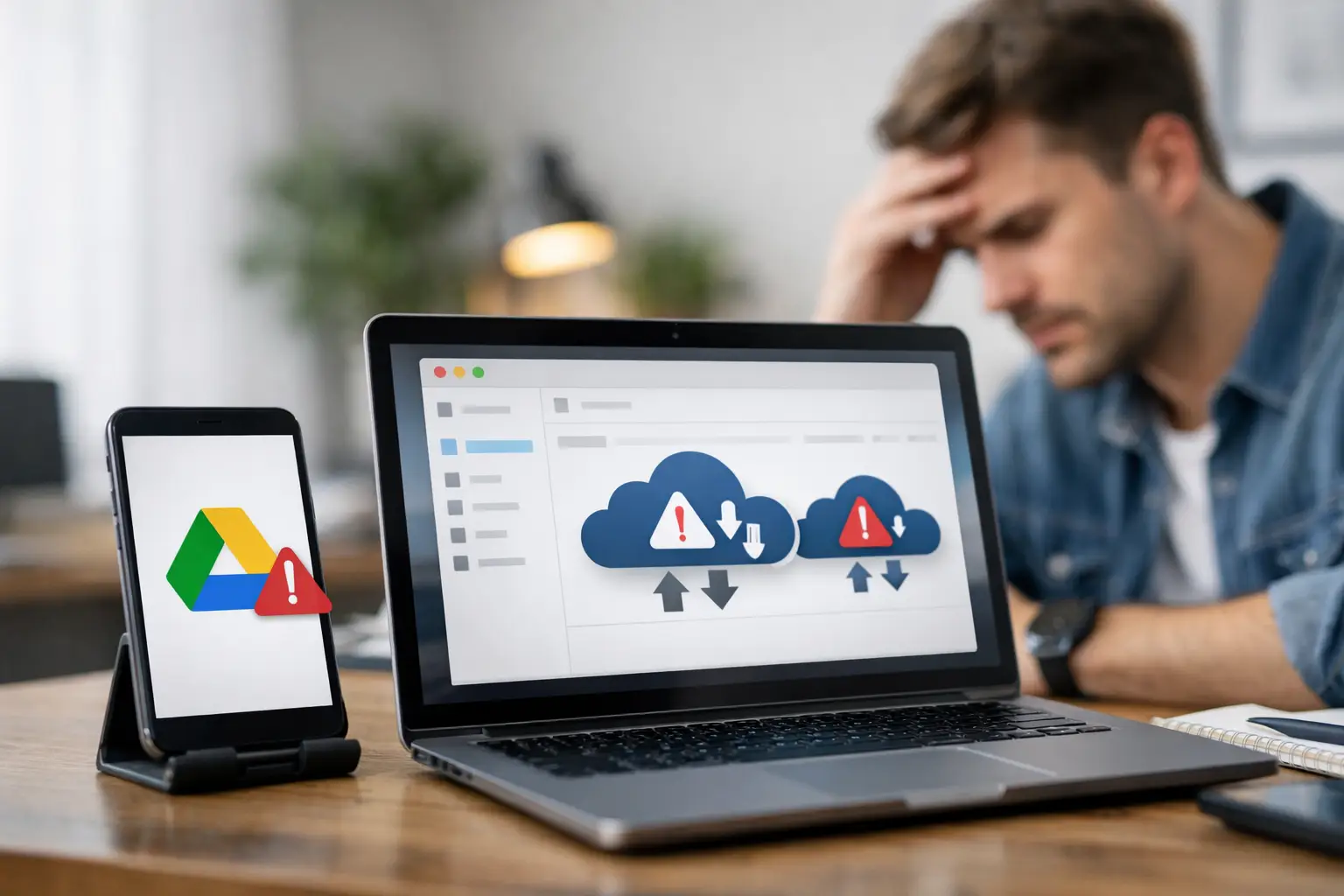
When Google Drive files not syncing interrupts your day, the problem is usually smaller than it looks. A stuck upload, missing document, or folder that refuses to update often comes down to connection issues, account conflicts, storage limits, or the Drive app getting hung up in the background.
This guide focuses on the fastest fixes first, so you can get Drive working again without wasting time on random settings.
Start with the quickest checks
Before changing anything major, confirm whether the problem is local or account-wide. Open Google Drive in your browser and check if the file appears there. If it shows up on the web but not on your computer, the issue is likely with the desktop app. If it is missing everywhere, the upload probably never finished.
Also check your internet connection. Drive can look connected while uploads quietly fail on a weak or unstable network. If other cloud apps or websites are also struggling, fix the connection first.
One more basic check matters more than people expect – make sure you are signed into the correct Google account. If you use separate work, school, or personal accounts, files can appear to be missing when they are simply syncing somewhere else.
Why Google Drive files not syncing happens
Most syncing failures fall into a few categories. The app may be paused, frozen, or outdated. Your Google account may be out of storage. A file name may contain unsupported characters. Security software might be blocking Drive, or the app cache may be corrupted.
Sometimes the issue is more specific. Shared drives can have permission delays. Very large files take longer than expected. On work-managed devices, admin policies can prevent local sync changes. That is why the right fix depends on where the sync breaks – browser, desktop app, or one specific folder.
Fix 1: Make sure Drive for desktop is running
If you use Drive on Windows or Mac, look for the Google Drive icon in the system tray or menu bar. If it is missing, the app may not be running at all. Open Drive for desktop manually and let it reconnect.
If the icon is visible, click it and check the status message. You may see syncing paused, offline, preparing to sync, or an error tied to a specific file. If syncing is paused, resume it. If the app looks stuck on the same message for a long time, quit and reopen it.
A simple restart clears many temporary sync stalls. It is not elegant, but it works often enough to be worth trying early.
Fix 2: Restart your computer and router
This sounds basic because it is basic, but it can clear network hiccups, stuck background processes, and failed app connections in one move. Restart your computer first. If Drive still will not sync, restart your router too.
This fix is especially useful if files were syncing normally earlier and then suddenly stopped with no obvious error. Random failures after sleep mode, VPN switching, or network handoffs are common.
Fix 3: Check Google Drive storage and local disk space
If your Google account is full, uploads stop. Open your Google account storage page or Drive storage view and confirm you still have room. Gmail, Google Photos, and Drive all count toward the same storage limit for most personal accounts.
Also check free space on your computer. If your local drive is nearly full, Drive for desktop may fail to cache files properly or mirror folders as expected. This is easy to miss on laptops with smaller SSDs.
If space is tight on either side, free up room and then give Drive a few minutes to catch up.
Fix 4: Look for file-specific problems
Sometimes Google Drive files not syncing affects just one file or folder, not the whole app. In that case, inspect the item itself.
Very long file names, unsupported characters, temporary system files, or files still open in another app can block sync. Rename the file using simple letters and numbers, close any app using it, and try again. If it is a folder, check whether one file inside is causing the jam.
Large files can also create confusion. They may still be uploading even though nothing seems to be happening. If your connection is slow, give the process more time before assuming it failed.
Fix 5: Sign out and sign back into Drive
Account authentication can quietly break, especially after password changes, security prompts, or account switching. Signing out of Drive for desktop and signing back in refreshes the connection to your Google account.
Do this carefully if you use multiple accounts. Make sure you reconnect the one tied to the files you expect to see. If you are on a work or school account, some sync settings may be controlled by your organization, so you may have fewer options than on a personal account.
Fix 6: Update Drive for desktop
An outdated app can cause sync delays, crashes, or missing files, particularly after OS updates. Open Drive for desktop and check for updates if the option is available. If not, reinstalling the latest version can help.
This matters most if the issue started after updating Windows or macOS. Compatibility problems tend to show up right after system changes.
Fix 7: Pause and resume syncing
If Drive appears active but nothing is moving, pause syncing and then resume it. This can force the app to refresh its queue without a full reinstall.
It is a small fix, but useful when the app is frozen on a vague message like syncing 1 file or preparing. If the queue restarts and begins moving again, you likely had a temporary hang rather than a deeper account issue.
Fix 8: Disconnect and reconnect the affected folder
If only one mirrored or streamed folder is failing, remove that folder from sync and add it back. This is more targeted than reinstalling the entire app and can save time.
Be careful here. If you use mirrored folders, make sure files are safely stored before removing sync paths. In most cases your cloud files remain in Drive, but local folder behavior depends on your sync mode and setup.
This is one of those it-depends fixes. It works well for a broken folder mapping, but it is not the first move if your whole account is failing to sync.
Fix 9: Clear Drive cache or reinstall the app
When Drive for desktop keeps failing after the basic fixes, the local app data may be corrupted. Clearing cache or reinstalling the app often fixes recurring sync errors that do not respond to restarts.
Uninstall Drive for desktop, restart your computer, and install it again. After signing back in, let it rebuild the sync relationship. This can take a little time, especially if you have a lot of files.
Reinstalling is more disruptive than the earlier steps, so save it for when the lighter fixes do not work.
Fix 10: Check firewall, antivirus, VPN, or proxy settings
Security software sometimes blocks Drive traffic or interferes with background syncing. If the problem began after installing a new antivirus tool, enabling a VPN, or changing network restrictions, test Drive with those tools temporarily disabled.
You do not need to leave security features off permanently. The goal is to confirm whether one of them is causing the block. If syncing resumes, add Drive as an allowed app or adjust the VPN or firewall settings.
This is especially common on office, school, or shared networks where traffic rules are stricter.
If Google Drive is not syncing in the browser
If the desktop app is fine but the browser version is acting up, the problem may be with cache, extensions, or the browser itself. Open Drive in a private window or a different browser first. If it works there, clear browser cache and disable extensions one by one.
Ad blockers, privacy tools, and script-blocking extensions can interfere with file uploads. So can browsers that are badly out of date. A quick browser test can save you from changing the wrong thing.
When the issue is actually a Google outage
Sometimes the problem is not on your side. If Drive suddenly stops syncing across devices and accounts, and none of the usual fixes help, there may be a temporary Google service issue.
This is less common than local app problems, but it happens. If that is the case, your best move is to wait rather than repeatedly reinstalling or changing settings that were not the cause.
What to do if files still will not sync
At that point, narrow the problem instead of repeating the same steps. Check whether the issue affects one file, one folder, one device, or your whole account. That tells you where to focus next.
If one file fails, rename or replace it. If one device fails, troubleshoot the app on that device. If everything fails everywhere, look at your account, storage, or a possible service issue. That kind of quick diagnosis is what turns a frustrating sync problem into a fixable one.
If you are still stuck, slow down and test one change at a time. The fastest way back to normal is usually the simplest one you have not tried yet.