Zoom Microphone Not Working? Fix It Fast
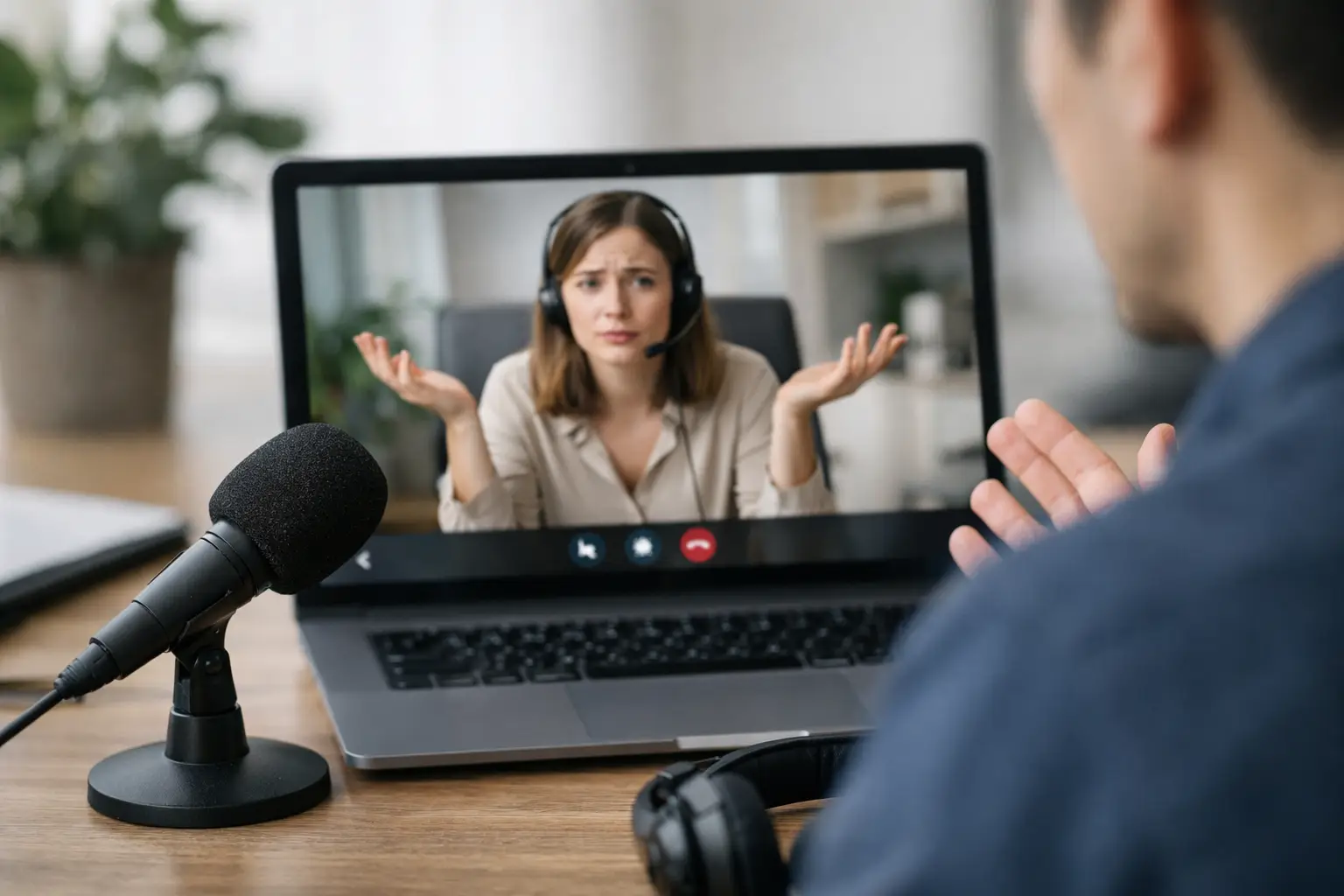
You join a meeting, say hello, and get the worst possible response – silence. If your Zoom microphone not working issue shows up right before class, a client call, or a team meeting, the fix is usually simpler than it feels in the moment. Most microphone problems in Zoom come down to the wrong input device, blocked permissions, muted audio settings, or another app taking control of the mic.
Start with the fastest checks
Before changing system settings, make sure the problem is actually Zoom and not the microphone itself. In many cases, the mic works fine, but Zoom is using the wrong source or starting muted.
Open Zoom and look for the microphone icon at the bottom left. If it has a red slash, click it to unmute. Then click the small arrow next to the mic icon and check which microphone Zoom is using. If you have built-in audio, a USB headset, Bluetooth earbuds, or a webcam with a mic, Zoom may have selected the wrong one automatically.
Use Zoom’s built-in test feature from the audio settings. Speak normally and watch whether the input level moves. If the meter stays flat, switch to another listed microphone and test again. This step alone fixes a lot of cases.
Why Zoom microphone not working happens
The common causes are usually easy to narrow down. Zoom needs permission from your device, the correct audio input, and an available microphone that is not blocked by another app. If one of those breaks, your audio disappears.
A wired headset that is only partly connected can cause this. So can Bluetooth devices that connect for output but not input. On laptops, privacy settings often block the mic after a system update. On phones, users sometimes deny microphone permission once and forget about it.
Fix Zoom microphone settings first
Check the selected microphone in Zoom
Go to Zoom settings, then Audio. Under Microphone, choose the device you actually want to use. If you are not sure which one is correct, test each listed option one by one.
Also turn off any setting that automatically lowers or adjusts your microphone volume if your voice sounds faint or cuts in and out. Automatic adjustment can help in some rooms, but it can also make weak microphones less reliable.
Turn off mute-on-join
In Zoom settings, look for the option to mute your microphone when joining a meeting. If this is enabled, you may keep entering calls muted and assume the mic is broken. That is not the same issue, but it causes the same frustration.
Rejoin the meeting
If audio worked earlier and suddenly stopped, leave the meeting and join again. Zoom occasionally fails to initialize the microphone correctly, especially after switching devices or waking your computer from sleep.
Check system microphone permissions
If Zoom microphone not working continues after the in-app checks, the next place to look is your device’s privacy settings.
On Windows
Open Settings, then Privacy & security, then Microphone. Make sure microphone access is turned on for the device and that desktop apps are allowed to use your microphone. If desktop app access is off, Zoom cannot capture audio even if the app settings look correct.
After that, open Sound settings and confirm your preferred input device is selected as the default microphone. Speak into it and check whether Windows detects input.
On Mac
Open System Settings, then Privacy & Security, then Microphone. Make sure Zoom is allowed. If it is already enabled, turn it off, restart Zoom, and turn it back on if needed.
Then go to Sound settings and confirm the input device is correct. Macs sometimes stick to a disconnected headset or external monitor input after hardware changes.
On iPhone and Android
Open your phone’s Settings, then Apps, then Zoom, then Permissions. Confirm microphone access is allowed. On iPhone, you can also check Settings, Privacy & Security, Microphone.
If permission is already enabled but audio still fails, force close Zoom and reopen it. Mobile apps sometimes need a full restart after permission changes.
Make sure another app is not using the mic
Some apps can interfere with Zoom by taking exclusive control of the microphone or by running audio enhancements that break compatibility.
Close apps like Teams, Discord, Skype, OBS, voice recorders, browser tabs with calling features, or any software that may be listening to your mic. This matters most on Windows, where audio device conflicts are more common.
If you use a USB microphone with custom software, close the manufacturer’s control app temporarily and test Zoom again. Certain filters, gain controls, and noise suppression tools can cause Zoom to lose the signal.
Restart the hardware connection
Physical connection issues are more common than people think. Unplug and reconnect USB microphones, wired headsets, or audio interfaces. If you are using a USB hub, connect the microphone directly to the computer instead. Hubs can cause unstable detection, especially with power-hungry devices.
For Bluetooth headphones, disconnect them fully and pair them again. There is a trade-off here: Bluetooth is convenient, but it is also more likely to create odd input-output mismatches than a wired mic. If you need reliability for an important call, wired audio is usually the safer choice.
Update Zoom and your device
An outdated Zoom app can cause audio issues after operating system changes. Install the latest Zoom update, then restart your device. If your computer recently updated and the microphone stopped working right after, a pending Zoom update may be the missing fix.
You should also check for system updates, especially on Mac and Windows laptops. Driver bugs and privacy permission changes often get patched there.
On Windows, update audio drivers through Device Manager if the microphone is not recognized correctly anywhere, not just in Zoom. If the mic fails in every app, the issue is probably outside Zoom.
Test the microphone outside Zoom
This is the quickest way to isolate the problem. Open Voice Recorder on Windows, QuickTime or Voice Memos on Mac, or your phone’s built-in recorder. Make a short test clip and play it back.
If the recording sounds normal, the microphone itself is working and the issue is probably inside Zoom settings or permissions. If the recording is silent or distorted there too, focus on device settings, hardware, or the microphone connection.
Browser Zoom vs desktop app
If you are joining through a browser, your browser may be blocking microphone access even if your system settings are correct. Check the site permissions in Chrome, Edge, Safari, or Firefox and allow microphone access for Zoom.
There is also an it-depends factor here. The browser version can be convenient for quick access, but the desktop app tends to handle audio devices more consistently. If your mic fails in the browser, switch to the Zoom desktop app and test there.
Fix low volume or cutting out audio
Sometimes the microphone is not fully broken – it is just too quiet or gets chopped up. In Zoom audio settings, increase the microphone input level if manual control is available. Move closer to the mic and reduce background noise.
If you are using Bluetooth earbuds, low battery can affect microphone quality. Charge them and reconnect. If you are using a laptop’s built-in mic in a noisy room, Zoom’s noise suppression may be filtering your voice too aggressively. An external mic or wired headset usually works better.
When to reinstall Zoom
If everything else checks out and Zoom still cannot detect your mic, reinstalling the app is worth trying. Remove Zoom completely, restart your device, and install the latest version again. This can clear broken permissions, corrupted audio settings, or device detection issues that survive a simple app restart.
For many users, this is the last fix before contacting Zoom support, and it often works because it resets the audio setup from scratch.
A quick order that saves time
If you want the shortest path, do this in order: confirm you are not muted, pick the right microphone in Zoom, test mic permissions on your device, close other audio apps, reconnect the microphone, and then restart Zoom or reinstall it. That sequence catches the most common failures without wasting time.
If you are troubleshooting in a hurry, Owkid-style problem solving comes down to one rule: test one variable at a time. Switching five settings at once makes it harder to tell what actually fixed the issue.
A microphone problem right before a meeting feels bigger than it usually is. Stay methodical, make one change at a time, and you will usually get your Zoom audio back before the next call starts.













