How to Resolve Discord Screen Share Lag
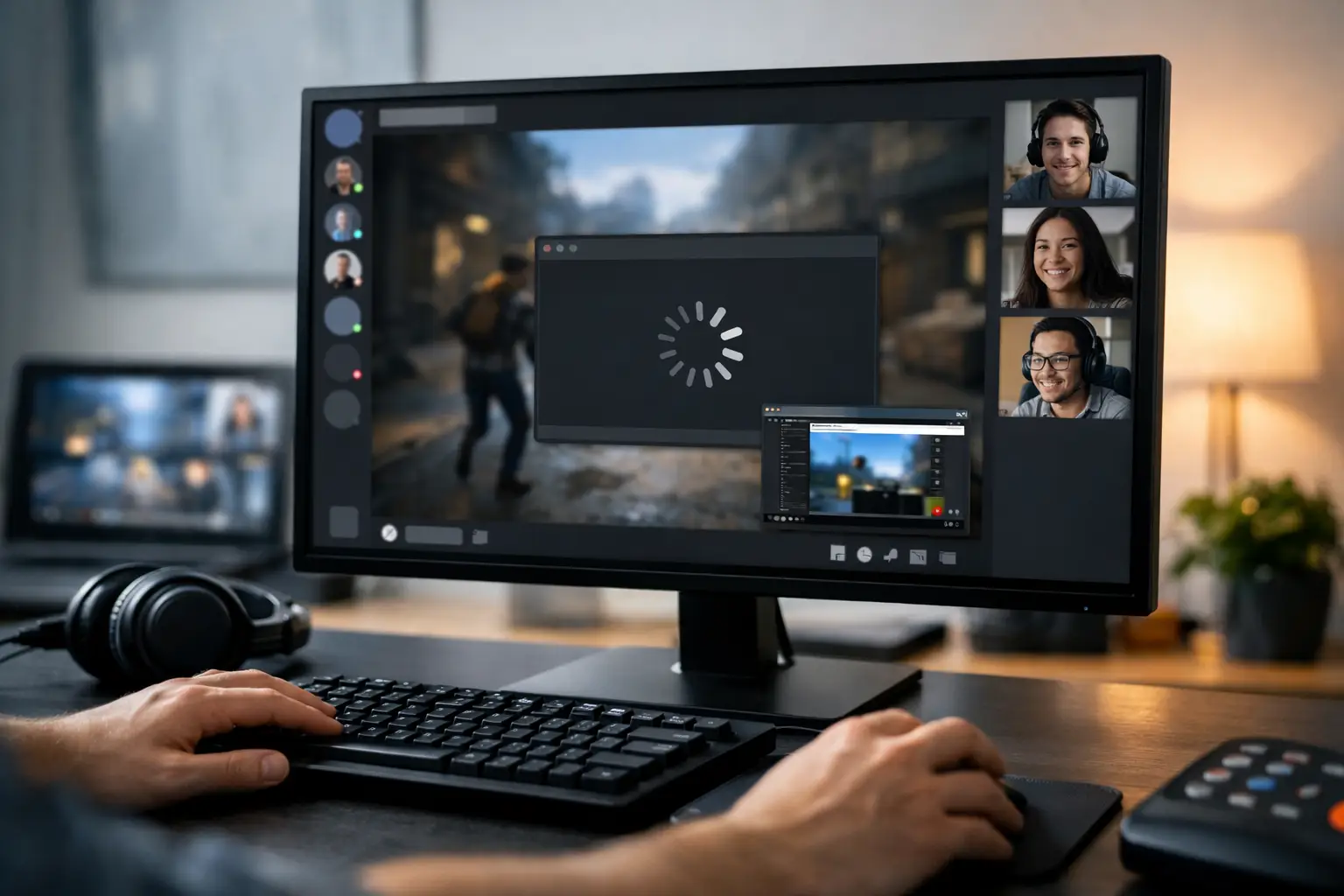
Screen share lag on Discord usually shows up at the worst time – during a class, a client call, or right when you are trying to stream a game to friends. If you need to resolve Discord screen share lag fast, start with the basics: confirm whether the problem is your PC, your internet connection, Discord settings, or the app itself.
This guide focuses on the fixes that actually move the needle. You do not need advanced tools, and you do not need to try everything at once. Work through the steps in order, because the cause is often a mix of high system load, poor upload speed, hardware acceleration issues, or the wrong Discord streaming settings.
Resolve Discord screen share lag by finding the bottleneck
Discord screen sharing depends on three things working well at the same time: your device has to capture the screen, encode the video, and upload it in real time. Lag happens when one of those steps falls behind.
If your stream looks choppy but your voice is fine, the issue is often graphics or encoding related. If both your voice and share freeze, your connection may be the problem. If only one app lags while the rest of your desktop shares normally, Discord may be struggling with that specific app, especially games, browsers, or DRM-protected video.
Before changing settings, do a quick test. Share your full screen for 30 seconds, then share a single app window. If full screen works better, the app itself may be causing the lag. If both lag, the issue is probably system load, Discord settings, or your network.
Start with the quick fixes that solve most cases
Fully close Discord, then reopen it. On Windows, make sure it is not still running in the system tray. On Mac, quit it completely rather than just closing the window. If Discord has been open for hours, a restart can clear temporary app glitches and memory buildup.
Next, restart your computer and router if the lag is severe or sudden. This sounds basic, but it often clears short-term CPU spikes, background update conflicts, and unstable home network behavior.
Also check whether Discord is having a broader issue. If the lag started out of nowhere and nothing changed on your setup, temporary platform-side problems are possible. In that case, local fixes may not help much until service stabilizes.
Check your internet upload speed and connection quality
Screen share quality depends more on upload than download. Many users focus on fast download numbers, but a weak or unstable upload connection is a common reason streams become blurry, delayed, or frozen.
If you are on Wi-Fi, move closer to the router or switch to Ethernet if possible. A strong Wi-Fi signal does not always mean a stable one, especially in apartments, dorms, or homes with many connected devices. Discord screen sharing suffers when your upload speed fluctuates, even if the average speed looks acceptable.
Pause large uploads, cloud backups, game downloads, and streaming on other devices. Video calls, security camera uploads, and sync tools can quietly eat bandwidth in the background. If your screen share improves after closing those, you found the problem.
A VPN can also introduce delay or packet loss. If you are using one, turn it off and test again. This is especially relevant if Discord voice is fine but screen share becomes soft, delayed, or stuttery.
Lower the share quality inside Discord
Sometimes the fix is simply asking less of your system and connection. If you are sharing at high resolution and frame rate, drop the settings and test again.
When starting a share, lower the resolution and frame rate first. If you were trying 1080p at 60 FPS, step down to 720p and a lower frame rate. For most meetings, classes, and casual streams, that is more than enough. The visual difference is smaller than most people expect, but the performance gain can be significant.
This matters even more on older laptops, integrated graphics systems, and crowded Wi-Fi networks. Higher settings look good in ideal conditions, but they expose every weakness in your hardware and connection.
Reduce CPU and GPU strain
Discord competes with your apps for system resources. If you are sharing a game, editing software, or a browser with many open tabs, your CPU and GPU may already be near their limit before screen share even starts.
Close anything you do not need. Browser tabs with video, game launchers, recording tools, RGB software, hardware monitors, and background overlays can all add load. On lower-end systems, even a few extra apps can push Discord into lag.
If you are gaming while sharing, lower the in-game graphics settings. This helps more than many users realize. A game using nearly all available GPU power leaves very little headroom for Discord to capture and encode the stream cleanly.
You should also check Task Manager on Windows or Activity Monitor on Mac while sharing. If CPU, memory, or GPU usage is pinned unusually high, the lag is probably local rather than network-related.
Change Discord hardware acceleration settings
Hardware acceleration can help on some systems and hurt on others. That is why this fix is worth testing instead of assuming the default setting is best.
Open Discord settings and look for hardware acceleration. If it is on, turn it off and restart Discord. If it is off, try turning it on. Some PCs stream better when Discord uses the GPU. Others do better when that load stays off the graphics card, especially if the GPU is already busy with a game or browser rendering.
This is one of the most useful it-depends fixes in Discord troubleshooting. There is no universal best setting because hardware combinations vary so much.
Update Discord, graphics drivers, and your OS
Outdated software can cause encoding bugs, app instability, and poor hardware compatibility. If Discord screen share lag started after a system update or after installing a new game, version mismatch is a real possibility.
Update Discord first. Then update your graphics driver from your GPU vendor through the normal system method you trust. After that, make sure Windows or macOS is current enough to avoid compatibility issues.
Driver updates are especially relevant if the lag includes black screens, flickering, or share crashes. Those symptoms often point to the graphics layer rather than bandwidth alone.
Turn off overlays and conflicting capture tools
Game overlays and recording utilities can interfere with Discord’s screen capture. If you use software like game launchers with overlays, screen recorders, or stream tools, try disabling them temporarily.
Conflicts are common when more than one app wants to hook into the same game or display output. You may not notice a problem until you start sharing. If lag disappears after disabling overlays, leave only the one you actually need.
Browser-based streaming platforms, screenshot tools, and even some antivirus display protections can create the same issue.
Fix app-specific lag when sharing a browser or video app
If Discord only lags when you share Chrome, Edge, a streaming app, or a specific program, try disabling that app’s hardware acceleration. Browsers in particular can behave badly with Discord screen share when both are leaning heavily on the GPU.
In a browser, turning off hardware acceleration can reduce stutter during share sessions, even if it makes the browser feel slightly less smooth in normal use. That trade-off is often worth it when your main goal is a stable stream.
Also test sharing the entire screen instead of the individual app window, or the reverse. Some apps perform better one way than the other.
Try the Discord app instead of the browser, or the browser instead of the app
If you are using Discord in a browser, switch to the desktop app. The desktop app is usually more stable for screen sharing and has better access to system-level capture features.
If you already use the desktop app and it keeps lagging, test Discord in a browser. This can help confirm whether the installed app has become the problem. It is not always the permanent fix, but it is a useful comparison step.
Clear app issues with a reinstall
When nothing else works, reinstalling Discord is worth the effort. Corrupted app files, leftover settings, or failed updates can cause stubborn screen share problems that do not go away with normal restarts.
Uninstall Discord, restart your device, and install a fresh copy. If the lag started after a recent update and all other fixes fail, a clean reinstall often restores normal performance.
This step is more useful when the issue is limited to Discord and not affecting Zoom, Google Meet, or other screen-sharing tools on the same device.
When the problem is your hardware
Sometimes the honest answer is that the device is underpowered for what you are trying to do. A budget laptop can handle voice chat and light sharing, but sharing a fast-moving game, a high-resolution display, or multiple monitors is another story.
If your system struggles even after lowering share quality, closing apps, and changing acceleration settings, aim for lighter use. Share one app instead of the whole desktop. Lower the frame rate. Avoid gaming and screen sharing at the same time if your hardware is already stretched.
That is not a glamorous fix, but it is often the most reliable one.
Best order to troubleshoot
If you want the shortest path to a solution, do this in order: restart Discord, lower share resolution and frame rate, switch from Wi-Fi to Ethernet or move closer to the router, close heavy apps, test hardware acceleration on and off, update Discord and GPU drivers, disable overlays, then reinstall Discord.
That sequence catches the most common causes without wasting time.
If you still cannot resolve Discord screen share lag after all of that, test another screen-sharing app on the same device. If that app also lags, the issue is probably your system or network rather than Discord alone. If only Discord fails, the fix is more likely to be app-specific settings or a reinstall.
A stable screen share usually comes from small adjustments, not one magic setting. Start with the biggest pressure points first – upload quality, resolution, and system load – and the fix tends to show up faster.