Guide to 2FA Recovery That Actually Works
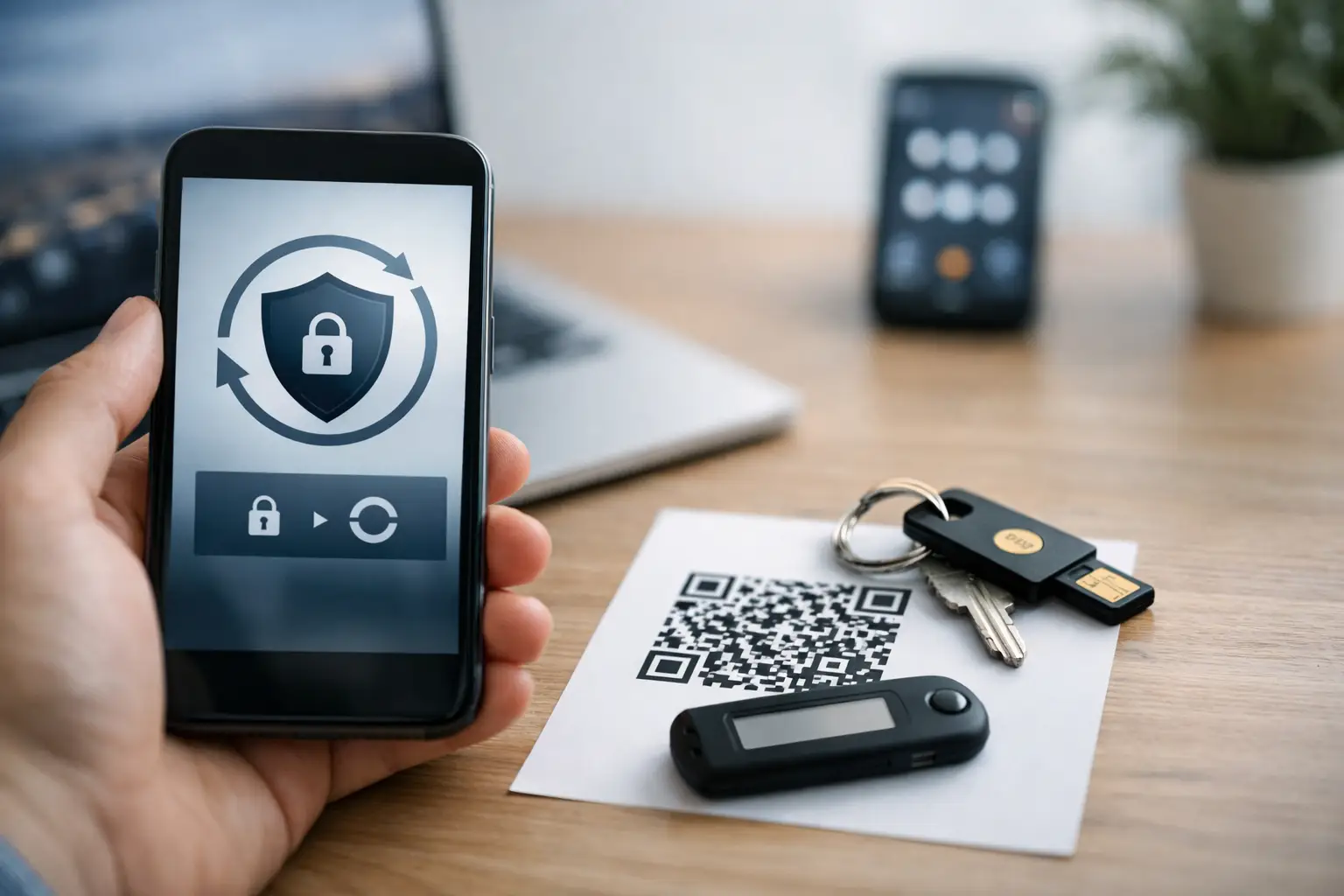
Locked out because your code app is gone, your phone number changed, or your backup codes vanished? This guide to 2FA recovery is built for that exact moment. The goal is simple: get you back into your account as fast as possible without making the lockout worse.
Two-factor authentication protects your account, but recovery can be messy because every service handles it differently. Some let you use backup codes right away. Others force an identity check, a waiting period, or a support ticket. That means the fastest fix depends on what kind of 2FA you were using and what recovery options you still control.
Start with the fastest recovery path
Before you reset anything, stop and check what you still have. If you rush into repeated failed attempts, some services will trigger temporary lockouts or extra fraud checks.
First, try the obvious route: sign in as usual and look for options like Try another way, Use a backup code, Verify with another device, or I no longer have access. If the account supports multiple second-factor methods, you may be able to approve the login from a trusted tablet, a browser session that is still signed in, or a hardware key you forgot you added.
If you are still logged in on any device, that is usually your best chance. Open the account security settings immediately. From there, you may be able to remove the old authenticator, update your phone number, add a passkey, generate new backup codes, or add a second recovery method before you get signed out.
Guide to 2FA recovery by method
The right fix depends on which type of two-factor authentication failed. Start with the method you originally set up.
If you used an authenticator app
This is the most common lockout scenario. You changed phones, reset your device, deleted the app, or lost access to the stored codes.
If your authenticator app was backed up to the cloud, restore it first. Some apps support encrypted backup and sync across devices, while others keep codes only on the original phone unless you manually transferred them. If you recently upgraded your phone, check whether the app has a restore, transfer, or import option. That may bring back your 2FA entries without needing account support.
If the app is still installed on an old phone, even one without cell service, turn it on and connect it to Wi-Fi. Authenticator apps do not need an active phone number to generate codes. They just need the stored secret and the correct device time.
If codes appear but keep failing, check the phone’s date and time settings. A clock that is off by even a minute can break time-based codes. Set time to automatic, reopen the app, and try again.
If none of that works, move to backup codes or account recovery.
If you used SMS or voice call verification
If the code goes to a phone number you no longer control, do not keep retrying. First confirm whether you still have access to that number through your carrier account, old SIM, or another device using the same number.
If you recently changed carriers or numbers, the account may still be tied to the previous phone. Some services let you choose another method on the sign-in screen. If not, you will likely need to verify your identity through recovery prompts.
There is also a security trade-off here. SMS is easy to recover when your number stays the same, but it is more vulnerable to SIM swap issues and number loss. Once you regain access, it is usually smarter to switch to an authenticator app, passkey, or hardware security key if the service allows it.
If you used a hardware security key
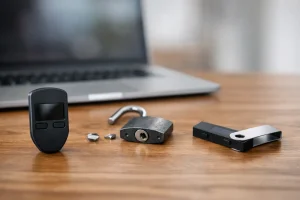
Check whether you registered more than one key. Many people set up a primary key and forget they added a spare. Try all USB, NFC, or Bluetooth keys you may have linked.
If the key is not working, test it on another browser or device before assuming the account is the problem. Browser permissions, USB access issues, and outdated operating systems can block detection.
If the only key is lost, recovery usually falls back to backup codes, a logged-in device, or manual identity verification. Security-key-only accounts can take longer to recover because the whole point is to prevent easy bypass.
Use backup codes if you have them
Backup codes are often the fastest fix in any guide to 2FA recovery, but people forget where they saved them. Check your password manager, cloud drive, screenshots folder, printed records, secure notes app, and old downloads. Search for terms like backup codes, recovery codes, or the platform name plus 2FA.
Each code is usually one-time use. If one works, log in and generate a fresh set immediately. Then store them somewhere you can access without the locked account. A password manager is usually the best option, as long as that manager itself has its own recovery plan.
What to do if you are still signed in somewhere
A live session can save you hours. If you have access on desktop, mobile, or tablet, treat that session like an emergency recovery window.
Go straight to security settings. Confirm your password still works. Then add a new second-factor method before removing the old one. If you remove the old method first and something fails during setup, you can make the problem worse.
Update your recovery email, recovery phone, backup codes, and any trusted devices. If the platform supports passkeys, consider adding one. They are usually easier to use than codes and less likely to fail because of a lost phone number.
When you need account recovery or support
If you have no backup codes, no trusted device, and no working second factor, you are probably down to official account recovery. This is where patience matters.
Most services ask for some combination of your email address, past passwords, billing details, device history, recent login locations, government ID, or proof of ownership. Give exact information when you can. Guessing wildly can lower your chances, especially on financial platforms, crypto services, and business tools with stricter fraud controls.
Submit one clean recovery request and monitor your email carefully, including spam and promotions folders. Repeated submissions can reset the review process on some platforms. If the service gives you a case number, save it.
Be realistic about timing. A social app may review recovery quickly. A bank, exchange, or workplace account may take longer because support teams have to balance access recovery with fraud prevention.
Common mistakes that slow down 2FA recovery
The biggest mistake is assuming the code is wrong when the real issue is time sync, a dead old phone, or signing in to the wrong account. Another common problem is deleting the authenticator app before checking whether it supports restore.
People also get stuck by relying on a single recovery method. If your only second factor was tied to one device and your backup codes were never saved, recovery becomes much harder.
A more subtle issue is recovery through work or school accounts. If your 2FA is tied to an employer-managed Microsoft, Google, or collaboration account, you may need your admin or IT team to reset it. Personal recovery options are often limited on managed accounts.
How to avoid getting locked out again
Once you are back in, spend five extra minutes fixing the setup properly. Add at least two recovery paths. For most people, that means an authenticator app plus backup codes, or a passkey plus backup codes. If the service allows it, add a secondary authenticator on another device or keep a spare hardware key in a safe place.
Store backup codes outside the account you are protecting. If your email account holds the codes for your email account, that is not really a backup plan.
Also review which accounts matter most. Your email, password manager, bank, cloud storage, and main social accounts deserve the strongest and most redundant setup. A shopping app matters less than the account that can reset all your passwords.
If you use several services, make a simple recovery checklist for yourself. Note which 2FA method each account uses, where backup codes are stored, and what your fallback option is. That sounds basic, but it prevents the exact panic that leads people to search for help after they are already locked out.
A good recovery setup should feel boring. That is the point. When something breaks, you want the fix to be obvious, quick, and under your control.