iPhone Stuck on Apple Logo: Fix Without Losing Data
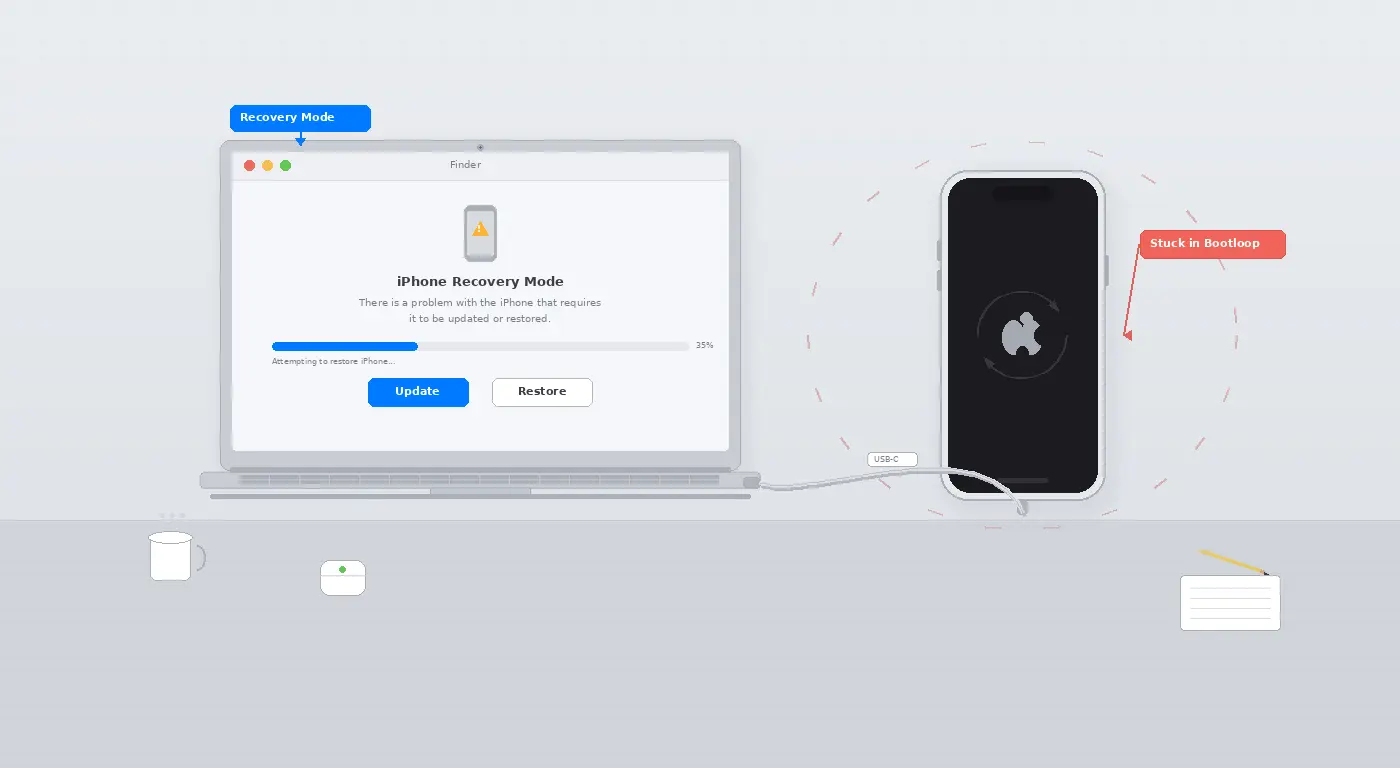
Why iPhones Get Stuck on the Apple Logo
The Apple logo bootloop almost always means iOS has encountered a corrupt system file during a software update, a restore, or after a hard shutdown at a bad moment. Rarely it’s hardware. Start with the software fixes — they preserve your data. Only escalate to a restore if the gentler approaches fail.
Fix 1: Force Restart (No Data Loss)
- iPhone 8 and later: Press and quickly release Volume Up → press and quickly release Volume Down → press and hold the Side button until you see the Apple logo, then release.
- iPhone 7: Press and hold both Volume Down and Sleep/Wake together for 10 seconds until the Apple logo appears.
- iPhone 6s and earlier: Press and hold both Home and Sleep/Wake for 10 seconds.
A successful force restart kicks iOS past a frozen boot state in about 60% of cases.
Fix 2: Enter Recovery Mode and Update iOS
- Connect your iPhone to a Mac or PC with a USB cable.
- Open Finder (Mac) or iTunes (Windows).
- Put the iPhone into Recovery Mode using the same button sequence as Force Restart — hold the final button until you see the Recovery Mode screen (cable + iTunes icon).
- In Finder/iTunes, click Update (NOT Restore). This reinstalls iOS without wiping your data.
- Wait up to 15 minutes. If it succeeds, your data is intact.
Fix 3: DFU Mode Restore (Erases Data)
- Only use this if Update mode failed.
- Enter DFU mode: connect to computer → quickly press Volume Up, then Volume Down, then hold the Side button for 3 seconds, then add Volume Down while still holding Side button for 10 more seconds, then release Side but keep Volume Down for another 5 seconds.
- Your screen should be completely black. In Finder/iTunes, click Restore.
- This erases the iPhone and installs a fresh iOS. If you had an iCloud or iTunes backup, you can restore from it afterward.
Fix 4: Check for Hardware Issues
- If the iPhone repeatedly gets stuck after successful restores, the issue may be the logic board, storage chip, or battery.
- Book a Genius Bar appointment. Apple Diagnostics can identify failing hardware in under 5 minutes.
Pro Tip: If you are stuck in the bootloop after a failed iOS update and cannot enter Recovery Mode normally, try a different USB cable and a different USB port. Many Recovery Mode failures are actually cable quality issues, not software problems.
Related Guides
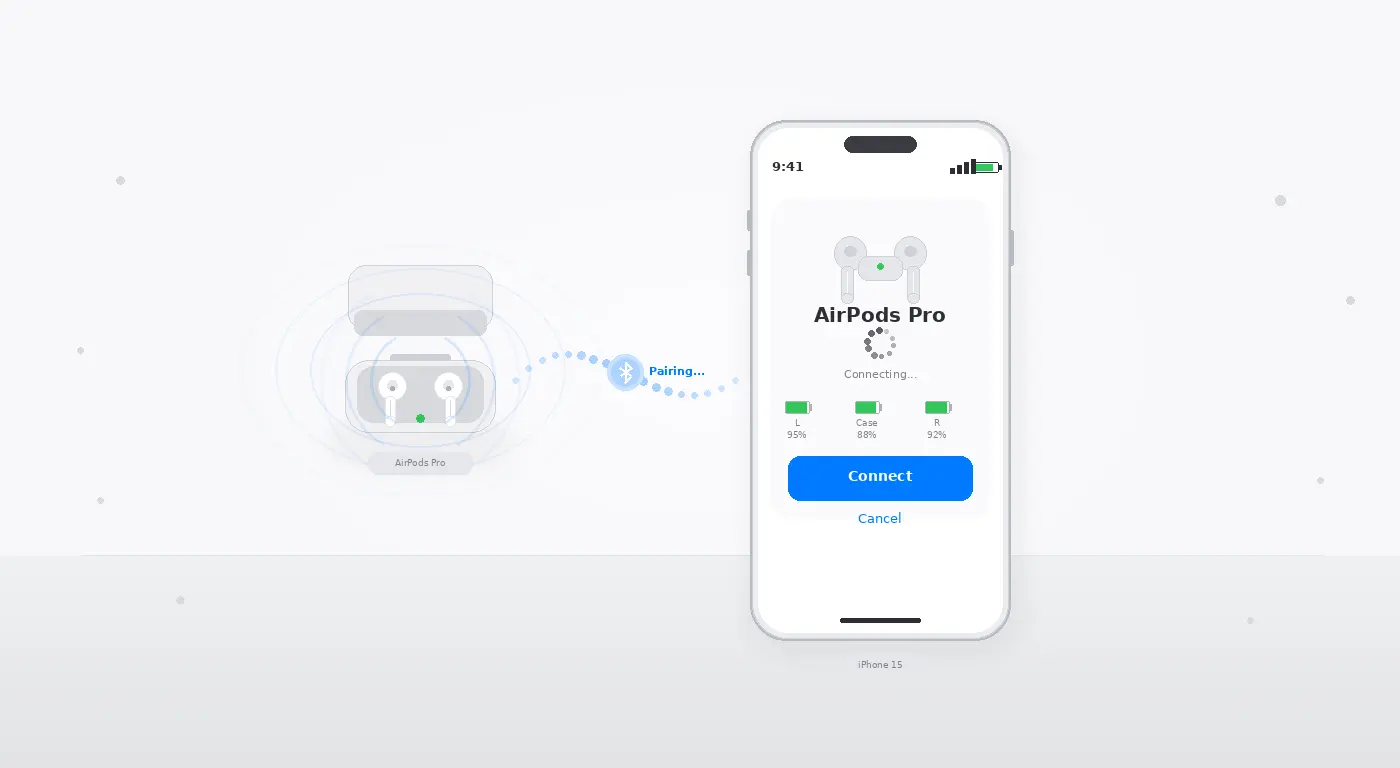
If your AirPods are also having issues after an iPhone restart, see our AirPods not connecting fix. For Android bootloop issues, see our Android hardware fix guide.











1 comment