Slack Notifications Not Showing? Fix It Fast
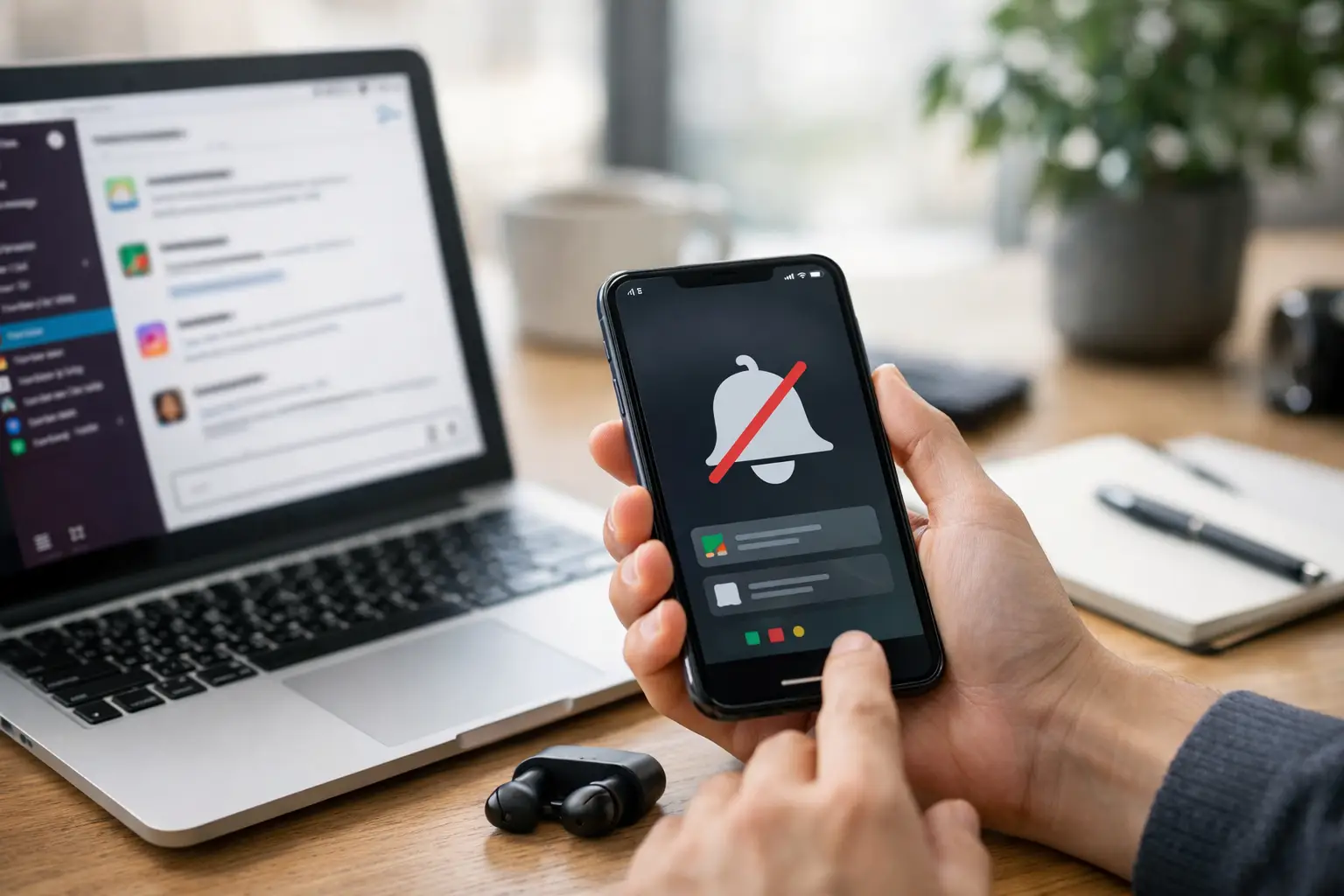
Missing a message in Slack can turn into a missed handoff, a late reply, or a team thinking you are ignoring them. If Slack notifications not showing is the problem, the fix is usually buried in one of a few places: Slack settings, your device permissions, Do Not Disturb, or a workspace-level preference that changed without you noticing.
This guide walks through the fastest checks first, then the deeper ones if alerts are still not coming through.
Start with the most common cause
Before changing everything, send yourself a test message or ask a coworker to mention you in a channel. Then check whether the problem affects all notifications or only certain ones, like direct messages, mentions, or mobile alerts.
That distinction matters. If direct messages work but channel mentions do not, your issue is probably inside Slack notification preferences. If nothing shows anywhere, the problem is more likely tied to system settings, app permissions, or a sync issue between devices.
Check Slack notification settings first
Open Slack and go straight to your notification preferences. On desktop, click your profile picture, then Preferences, then Notifications. On mobile, open the You tab, then Notifications.
Make sure notifications are set to alert you for what you actually want. If the setting is on direct messages, mentions, and keywords only, normal channel activity will stay quiet. That is expected behavior, not a bug.
Also check these settings closely:
- Notification schedule
- Do Not Disturb hours
- Sound and banner preferences
- Per-channel notification overrides
- Keyword alerts
A channel can be muted even when the rest of Slack is working normally. Open the channel, check its notification setting, and confirm it is not muted or limited to only occasional alerts.
If Slack notifications not showing for one channel
This usually comes down to that channel being muted, set to “Nothing,” or overridden by a custom preference. Channel-specific settings can easily conflict with your general notification setup.
If you only miss alerts in one workspace, compare settings in that workspace against another one where notifications still work. Slack can handle each workspace differently, so a fix in one may not carry over to the next.
Make sure Do Not Disturb is really off
Slack has its own Do Not Disturb controls, and your phone or computer has separate focus settings. Both can suppress alerts.
Inside Slack, check whether Do Not Disturb is active. Even if you did not turn it on manually, a recurring schedule may be muting alerts during work blocks, evenings, or weekends.
Then check your device:
On iPhone, look at Focus modes and notification summaries. On Android, check Do Not Disturb, app sleep settings, and battery restrictions. On Windows, review Focus Assist. On Mac, check Focus and Notification Center settings.
A common trap is turning off Do Not Disturb in Slack but leaving your operating system in a focus mode that still blocks banners and sounds.
Confirm Slack has permission to send notifications
If Slack notifications not showing on desktop or mobile, permission settings are a likely cause. This often happens after an app update, OS update, or when switching devices.
On iPhone, go to Settings, then Notifications, then Slack. Make sure Allow Notifications is on, and enable lock screen, banners, and sounds if you want visible alerts.
On Android, open Settings, then Apps, then Slack, then Notifications. Confirm notifications are allowed for all relevant categories. Some Android phones also hide alerts if battery optimization is enabled too aggressively.
On Windows, open Settings, then System, then Notifications, and make sure Slack is allowed. On Mac, open System Settings, then Notifications, then Slack, and enable alerts there.
If permissions are disabled at the operating system level, changing Slack itself will not fix anything.
Check whether another device is taking over alerts
Slack tries to be smart about where it sends notifications. If you are active on desktop, mobile notifications may pause. If the desktop app is open and considered active, your phone might stay silent.
This behavior helps reduce duplicate alerts, but it also causes confusion when the desktop app is open in the background and not showing banners properly. In that case, neither device feels reliable.
Try this quick test: completely quit Slack on desktop, then send a new test message and see whether your phone alerts. Then do the reverse by disabling mobile notifications temporarily and testing desktop.
If one device starts working as soon as the other is closed, the issue is likely tied to Slack’s active-device logic rather than a total notification failure.
Update Slack and restart the app
It sounds basic, but stale app versions regularly cause notification glitches. Slack may still open and sync messages while failing to trigger banners or sounds correctly.
Update Slack from the App Store, Google Play, Microsoft Store, or Slack’s desktop updater. After that, fully close the app and reopen it. On desktop, make sure you actually quit Slack instead of just closing the window.
If that does not help, restart your device. This clears temporary notification service issues that can affect multiple apps, not just Slack.
Fix browser-based Slack notifications
If you use Slack in Chrome, Edge, Firefox, or Safari, browser permissions become part of the problem.
First, make sure browser notifications are allowed for Slack. Then confirm the site itself is not blocked. It is possible to allow browser notifications in general while blocking them for one site.
Also check whether your browser is suppressing alerts because of quiet notification settings, background tab restrictions, or an extension interfering with site permissions. Privacy and ad-blocking extensions sometimes break web app behavior in ways that look like a Slack problem.
If browser alerts fail but the desktop app works, the simplest fix is often switching back to the dedicated Slack app.
Look at mobile battery and background limits
On phones, Slack needs enough background access to deliver alerts consistently. If your device is trying too hard to save battery, notifications may arrive late or not at all.
On Android, disable battery optimization for Slack if alerts are delayed. Also check adaptive battery, background usage restrictions, and whether the app has been placed into a sleeping apps list.
On iPhone, make sure Background App Refresh is enabled for Slack. Low Power Mode can also reduce background activity, which may affect timing.
This is especially common if notifications only fail when your phone has been idle for a while.
Sign out and resync Slack
If settings all look correct but Slack notifications not showing continues across one device, the app may simply be out of sync.
Sign out of Slack on the affected device, then sign back in. This refreshes your workspace session and can reset broken notification registration.
If you are signed into several workspaces, check each one after you return. Sometimes only one workspace loses proper notification behavior while the others keep working.
Reinstall Slack if alerts still fail
Reinstalling is worth trying when notifications used to work and then suddenly stopped after an update, device change, or account switch.
Delete the app, reinstall it, sign in again, and recheck permissions during setup. On mobile, pay attention when your phone asks whether Slack can send notifications. If you dismiss that prompt or deny it, the app may stay silent until you fix it manually in system settings.
This step takes a few extra minutes, but it often clears stubborn local bugs better than endlessly toggling settings.
When the issue is not on your side
Sometimes the problem is Slack itself. If messages are delayed, statuses are failing to sync, or multiple coworkers report missing alerts at the same time, there may be a service issue.
In that case, changing local settings will not do much. Wait a bit, test again, and see whether messages eventually appear without proper notifications. That pattern usually points to a temporary backend issue.
For people troubleshooting fast at work, Owkid’s rule is simple: if alerts broke suddenly across devices and settings look normal, stop over-tuning and consider a service-side problem.
A fast order to try if you want the shortest path
If you do not want to troubleshoot every possibility, use this order: check Slack notification preferences, confirm Do Not Disturb is off in Slack and on your device, verify OS permissions, quit Slack on other devices, update the app, then sign out and back in. That sequence solves most cases without going deep into advanced settings.
If one thing is worth remembering, it is this: Slack notification issues are usually not one big failure. They are small settings conflicts stacked on top of each other. Once you find the one blocking alerts, everything tends to start working again quickly.













