Why Your Browser Keeps Logging You Out
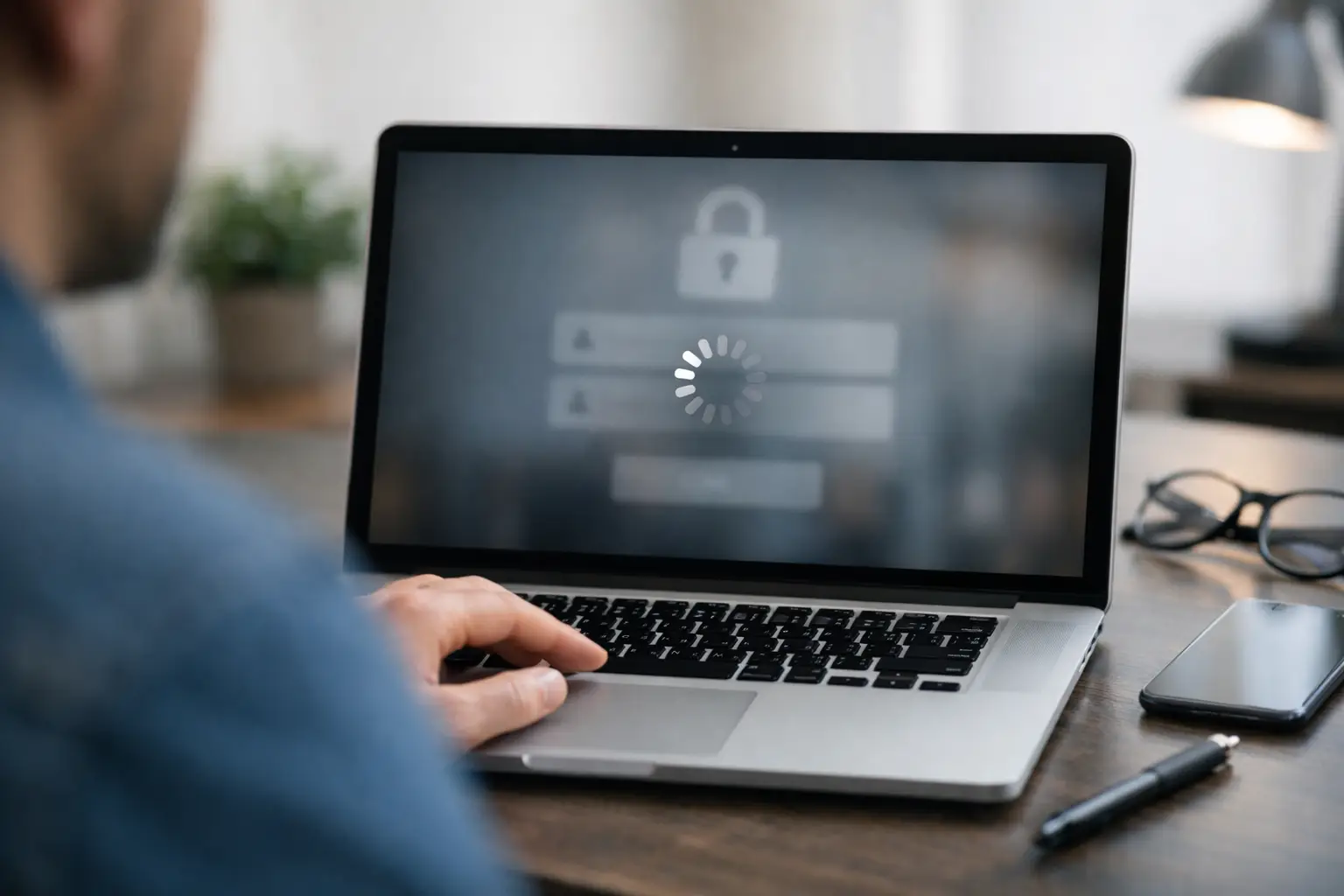
Getting kicked out of your email, banking app, or favorite site every few minutes is more than annoying. If your browser keeps logging me out is the problem you searched for, the good news is that this usually comes down to a small set of settings, browser data issues, or account security triggers you can fix quickly.
Why your browser keeps logging you out
Most websites keep you signed in with cookies, session tokens, or saved browser data. When any of that gets deleted, blocked, or overwritten, the site treats you like a new visitor and asks you to log in again.
That can happen for a few different reasons. Your browser may be clearing cookies on exit. An extension may be blocking trackers too aggressively. Corrupted cache data can break login sessions. In other cases, the website itself logs you out because it detects suspicious activity, too many devices, or a password change.
The fastest way to solve it is to start with the browser, then check account-level causes.
Fix browser keeps logging me out issues step by step
1. Check whether cookies are blocked or auto-deleted
Cookies are the most common cause. If they are disabled, restricted, or erased every time you close the browser, websites will not remember your login.
In Chrome, Edge, and other Chromium browsers, open Settings and look for Privacy and security, then third-party cookies or site settings. Make sure cookies are allowed at least for the sites you use regularly. If you use a setting like Clear cookies and site data when you close all windows, turn it off.
In Firefox, go to Settings, then Privacy & Security. If Enhanced Tracking Protection is set to Strict, try Standard first. Strict mode can sometimes interfere with sign-ins on certain sites.
In Safari, check the privacy settings and make sure cross-site tracking or cookie restrictions are not causing issues with the specific service you use. Some privacy settings are useful, but the trade-off is that sign-in sessions can break more often.
2. Clear cache and site data for the problem website
If cookies are enabled but the browser still keeps logging you out, the stored session data may be corrupted.
You do not always need to wipe your entire browser. A better first move is clearing data just for the affected website. In most browsers, you can open the site, click the padlock icon near the address bar, and clear cookies or site data for that domain. Then close the tab, reopen the site, and sign in again.
If that does not help, clear your browser cache and cookies more broadly. This signs you out of many sites, so do it when you have your passwords or password manager ready.
3. Test in a private window
Open the same website in Incognito mode or a private browsing window and sign in there.
This is a quick way to narrow down the cause. If the site works normally in private mode, the problem is often tied to your main browser profile, saved data, or an extension. If it still logs you out in private mode, the issue may be with the site, your account, or your device time and network setup.
Private mode is a test, not a permanent fix. Many private windows delete cookies as soon as you close them, so repeated logouts there are expected after the session ends.
4. Disable extensions that interfere with logins
Ad blockers, privacy tools, antivirus browser add-ons, and cookie managers can all disrupt login sessions.
Temporarily disable extensions, especially anything related to blocking scripts, trackers, pop-ups, or automatic cleaning. Then restart the browser and test the site again. If the problem stops, re-enable extensions one at a time until you find the one causing it.
This happens often with aggressive privacy extensions. They can be useful, but they sometimes treat login cookies like unwanted tracking data.
5. Make sure your browser is not set to clear history on exit
Some users turn on automatic cleanup for privacy and forget it is enabled. That setting can erase cookies, sessions, and saved site preferences every time the browser closes.
Check your browser settings for options like Clear browsing data on exit, Delete cookies when closing, or automatic cleanup from a third-party tool. Also check antivirus or PC cleanup software. Some apps remove browser data in the background without making it obvious.
If you share a computer or use a work device, this may be enforced by a company policy. In that case, your browser may keep logging you out by design.
6. Verify date, time, and time zone
This sounds minor, but it can break secure logins. If your computer’s clock is wrong, websites may think your session token has expired or is invalid.
Open your device settings and make sure the date, time, and time zone are correct. Turn on automatic time sync if available. Then restart the browser and sign in again.
This fix matters more than people expect, especially after travel, a drained laptop battery, or changes to manual system settings.
7. Update the browser
Outdated browsers can have bugs with session handling, cookie storage, or compatibility with newer sign-in systems.
Go to your browser’s About section or update page and install the latest version. Then restart the browser fully, not just the tab. If the browser has been open for days, a full restart helps apply the update cleanly.
If the issue started right after an update, the opposite can also be true. A new version may have introduced a bug. In that case, testing another browser is a fast way to confirm whether the problem is browser-specific.
Account and website causes to check
8. Look for security-triggered logouts
Sometimes the browser is not the real issue. Many services log users out when they detect unusual activity, such as a new device, a VPN, frequent IP address changes, or too many failed login attempts.
If you use a VPN, proxy, or privacy-focused DNS service, turn it off briefly and test again. Some platforms treat changing locations as a security risk and reset sessions more often.
Also check whether your account password was recently changed. Many websites sign out all sessions after a password update, which is normal and meant to protect the account.
9. Check if you are signed in on too many devices
Streaming services, collaboration tools, and some finance platforms may limit session activity across devices. When too many sessions stack up, one new login can force another out.
Look for a setting like Manage devices, Active sessions, or Sign out of other devices. Logging out everywhere and signing back in only where you need to can stabilize the problem.
This is especially common with shared accounts. What looks like a browser problem may really be another device constantly replacing your session.
10. Try another browser or a new browser profile
If one browser keeps failing while another works, you have isolated the problem fast.
Create a new browser profile or test another browser entirely. If the site stays signed in there, your main profile likely has corrupted settings, broken sync data, or a bad extension mix. Moving to a fresh profile is often faster than chasing one hidden setting for an hour.
Browser sync can also cause trouble. If your settings, extensions, or history sync across devices, one bad configuration may keep returning even after you fix it locally. Temporarily pause sync and test again.
When the issue is not on your side
Sometimes the website is having session problems. If multiple users are reporting unexpected logouts, or if the service recently changed its login system, there may be an outage or bug in progress.
You can usually spot this when the problem affects only one site and every browser on every device behaves the same way. At that point, there may be little to fix locally besides waiting, using the mobile app, or signing in less often until the service stabilizes.
A quick order that saves time
If you want the shortest path, do this in order: confirm cookies are allowed, clear site data for the affected site, test in a private window, disable extensions, and then try another browser. That sequence catches most logout issues without forcing a full device reset.
If nothing changes after that, shift your attention to account security settings, VPN use, active sessions, and possible platform-side issues.
A browser logout loop feels random, but it usually is not. Once you figure out whether the problem is browser data, an extension, or the account itself, the fix gets a lot more straightforward.