MacBook Running Hot: How to Stop Overheating
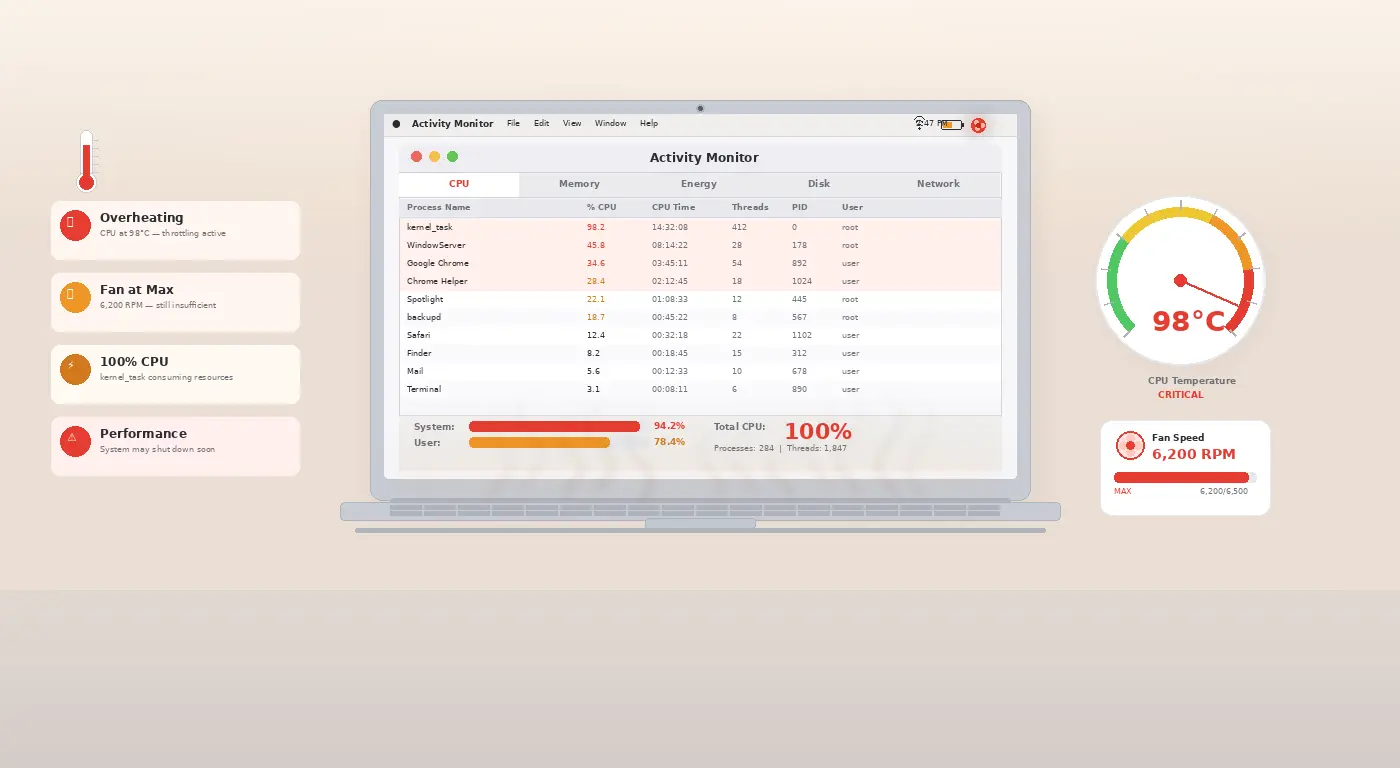
Normal Heat vs. Overheating
MacBooks are designed to run warm — the aluminum chassis is a deliberate heat sink. What’s not normal: the fan spinning at maximum RPM constantly, the bottom being too hot to hold, or performance dropping noticeably under light tasks. If you’re experiencing any of these, the causes below are likely.
Fix 1: Check Activity Monitor for CPU Hogs
- Press Cmd + Space → type Activity Monitor → open it.
- Click the CPU tab and sort by % CPU descending.
- Any process using more than 80% CPU continuously is abnormal. Common culprits: kernel_task (macOS thermal management), a runaway browser tab, Spotlight indexing, or malware.
- If it’s a browser tab, find which tab by opening the browser’s built-in task manager (Chrome: Shift + Esc).
Fix 2: Reset the SMC
- The System Management Controller handles fan speed, temperature sensing, and power management. A corrupted SMC causes fans to run wrong or not at all.
- MacBooks with Apple Silicon (M1/M2/M3): Simply shut down fully, wait 30 seconds, and restart. SMC equivalent resets automatically.
- Intel MacBook (T2 chip): Shut down → hold Ctrl + Option (left) + Shift (right) for 7 seconds → add the Power button and hold all four for another 7 seconds → release → power on.
- Older Intel MacBook: Shut down → hold Shift + Ctrl + Option + Power for 10 seconds → release → power on.
Fix 3: Clean the Vents
- MacBook Pro vents are on the bottom edge and the hinge area. MacBook Air vents through the hinge only.
- Use a can of compressed air (short bursts) to clear dust from the vent slots.
- Never use a vacuum cleaner — static discharge can damage the logic board.
- On MacBook Pros older than 4 years, opening the bottom panel to clean the internal fan directly and replace thermal paste is worth considering.
Fix 4: Reduce Browser Tab Load
- Each open Chrome tab consumes CPU and RAM, even when inactive.
- Install the The Great Suspender or OneTab extension to suspend idle tabs.
- Consider switching to Safari for daily browsing — it has significantly lower CPU usage on macOS than Chrome or Firefox.
Fix 5: Check for macOS Updates
- Apple regularly patches thermal management issues in macOS updates. Go to System Settings → General → Software Update.
- Some specific macOS versions (notably early Ventura and early Sonoma builds) had aggressive thermal runaway bugs that were fixed in point releases.
Pro Tip: Use iStatMenus or the free Stats menu bar app to monitor CPU temperature in real time. If temperature exceeds 100°C at idle, the thermal paste between the CPU and heatsink has almost certainly dried out — a repair shop can re-paste it for $50–$100.
Related Guides
For Windows overheating and BSOD issues, see our Windows 11 BSOD guide. For AirPods pairing issues on Mac, see our AirPods not connecting fix.