Android Phone Not Charging: 6 Causes and Fixes
Is It the Cable, the Port, or the Phone?
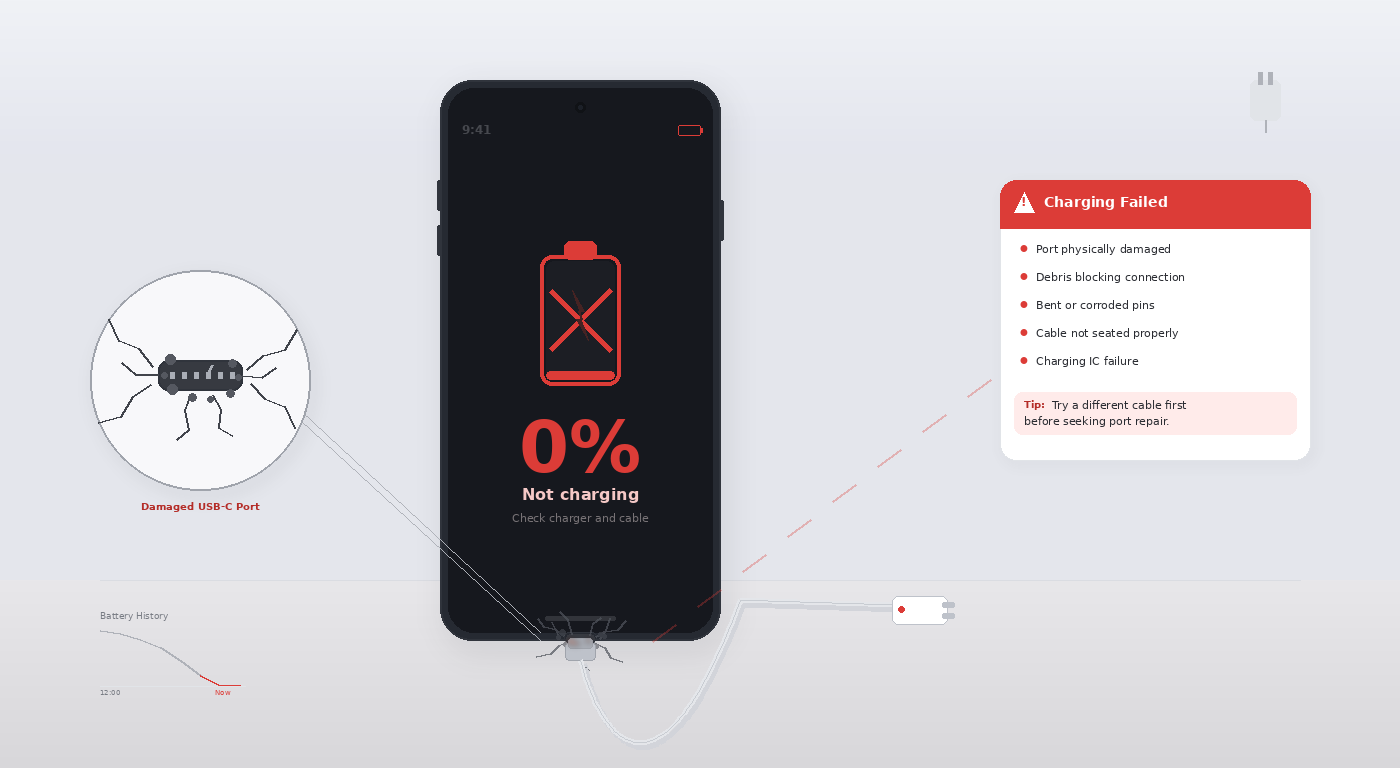
Android charging failures almost always trace to one of three components: the charging cable, the charger brick, or the USB port on the phone. Before assuming the phone is broken, eliminate the cable and charger first — they account for about 70% of “not charging” complaints.
Fix 1: Test With a Different Cable and Charger
- Use a different USB-C (or micro-USB) cable and charger brick. Borrow one if needed.
- If the phone charges with a different cable, the original cable is damaged — replace it. USB-C cables are particularly susceptible to internal wire breaks near the connector end.
- Cheap third-party chargers often cannot deliver enough power (5W vs. the 18–65W your phone needs for fast charge).
Fix 2: Clean the USB Port
- Look inside the USB-C port with a flashlight. Lint and debris are extremely common — pockets accumulate more lint than most people realize.
- Use a wooden toothpick or a dry anti-static brush to gently clear debris from the port. Do not use metal objects or compressed air at high pressure.
- After cleaning, try the cable again. Loose connections due to debris cause slow charging and “charging stops” issues.
Fix 3: Restart the Phone
- Press and hold the power button → Restart.
- Some Android charging bugs are software-level — a faulty battery calibration process running in the background can refuse to accept charge. A restart resets this.
- After restart, plug in and check if the charging indicator appears.
Fix 4: Boot Into Safe Mode
- Press and hold Power → long-press Power Off → select Safe Mode.
- In Safe Mode, third-party apps are disabled. If the phone charges in Safe Mode but not normally, a third-party app is interfering.
- Uninstall recently installed apps to find the culprit.
Fix 5: Check Battery Health
- Install AccuBattery (free, Google Play) and run the battery health check.
- A battery below 60% of its original capacity may refuse to charge properly on some devices or charge only to a low percentage.
- Battery replacement is available from most phone repair shops for $30–$70 and is usually worth it on a phone that otherwise works well.
Fix 6: Check for Water Damage
- Modern Android phones show a moisture detection warning when water is detected in the USB port.
- If you see this warning, do not force charging — it can cause permanent damage. Leave the phone in a dry area for several hours (standing upright, port down) to allow moisture to evaporate.
- Do not use rice — it does not absorb moisture fast enough and leaves starch residue in the port.
Pro Tip: Wireless charging can bypass a broken USB port entirely. If your Android supports Qi wireless charging and the USB port is the problem, a $15 wireless charger pad is a practical workaround while you get the port repaired.
Related Guides
For iPhone hardware issues, see our iPhone bootloop fix guide. For laptop overheating issues, see our MacBook overheating guide.