AirPods Not Connecting to iPhone: 7 Fixes That Work
Before You Troubleshoot
Confirm your AirPods have charge — low battery is the single most misdiagnosed AirPods issue. Place them in the case and charge for at least 5 minutes. The LED on the front of the case should be amber while charging. If there is no LED response, the case itself may need charging.
Fix 1: Put AirPods Back in the Case and Reopen
- Place both AirPods fully in the case. Close the lid. Wait 15 seconds.
- Open the lid near your iPhone. The connection prompt should appear on screen.
- This re-initializes the Bluetooth handshake and solves temporary pairing failures.
Fix 2: Toggle Bluetooth Off and On
- Open Control Center → tap the Bluetooth icon to turn it off.
- Wait 5 seconds. Tap it again to turn Bluetooth on.
- Open your AirPods case next to your iPhone.
Fix 3: Forget and Re-Pair AirPods
- Settings → Bluetooth → tap the (i) icon next to your AirPods → Forget This Device.
- Put both AirPods in the case. Open the lid. Press and hold the setup button on the back of the case until the LED flashes white.
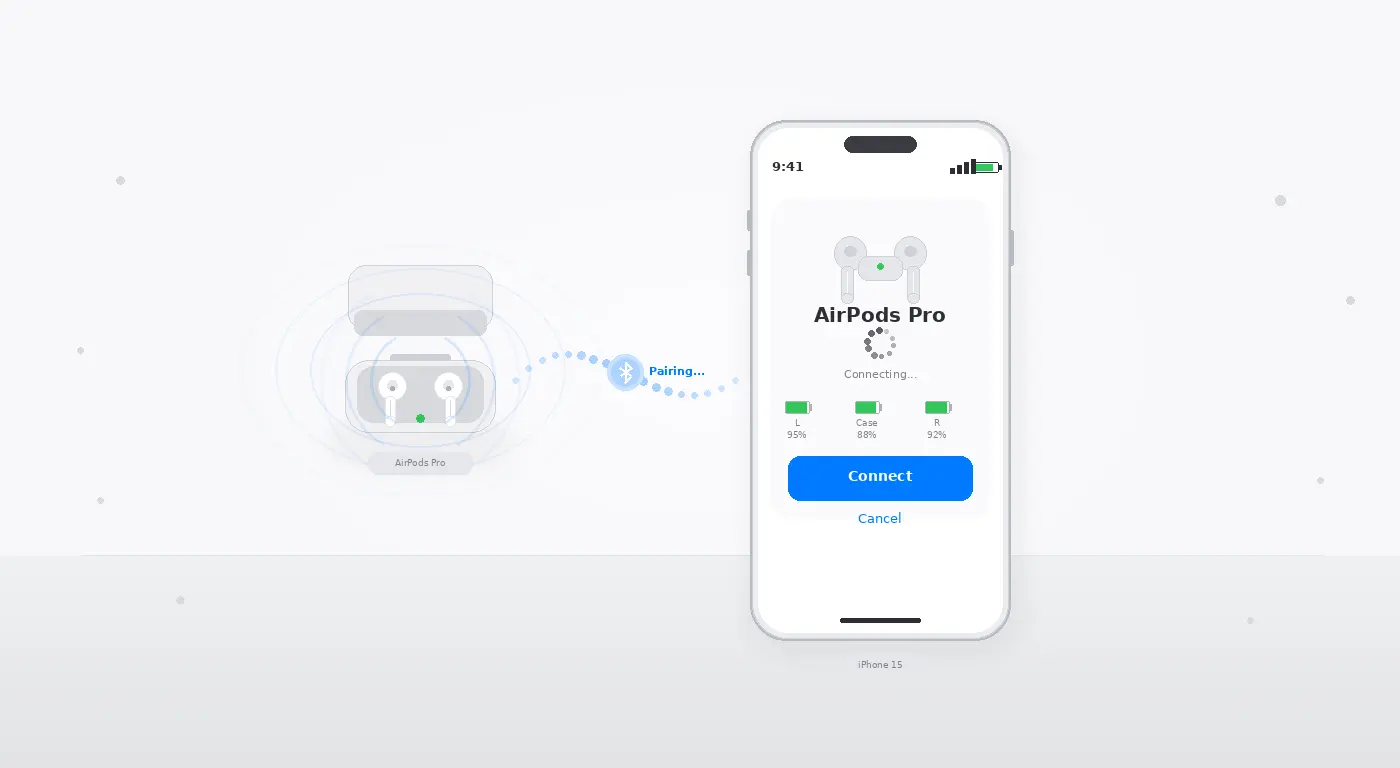
- Bring the open case close to your iPhone — the pairing animation should appear. Tap Connect.
Fix 4: Check the Active Audio Device
- Sometimes AirPods connect to an iPad or Mac instead of your iPhone.
- On your iPhone, open Control Center → tap and hold the audio widget → select your AirPods from the device list.
- In Settings → Bluetooth, ensure your AirPods are listed as Connected, not just Not Connected.
Fix 5: Reset Network Settings
- Settings → General → Transfer or Reset iPhone → Reset → Reset Network Settings.
- This resets all Bluetooth pairings along with Wi-Fi passwords. You will need to re-pair all Bluetooth devices and re-enter Wi-Fi passwords.
- Use this only if Fixes 1–4 have all failed.
Fix 6: Update iPhone and AirPods Firmware
- Settings → General → Software Update. Install any pending iOS update.
- AirPods firmware updates automatically when the AirPods are in the case, connected to a charger, and your iPhone is nearby. Leave them for an hour after the iOS update.
Fix 7: One AirPod Not Working
- If only one AirPod connects, clean the metal charging contacts inside the case with a dry cotton swab.
- Also clean the metal stem of the AirPod that is not responding.
- Corrosion or earwax on the contacts is the most common cause of single-sided AirPod failures.
Pro Tip: AirPods automatically switch between your Apple devices using iCloud. If they keep jumping to your Mac instead of your iPhone, go to your Mac’s Bluetooth settings → click the arrow next to your AirPods → change “Connect to This Mac” to When Last Connected to This Mac.
Related Guides
If your iPhone is having other hardware issues, see our iPhone stuck on Apple logo fix. For Android audio issues, see our Android hardware guide.