Windows 11 Blue Screen of Death: The Complete Fix Guide
Reading a Windows 11 BSOD
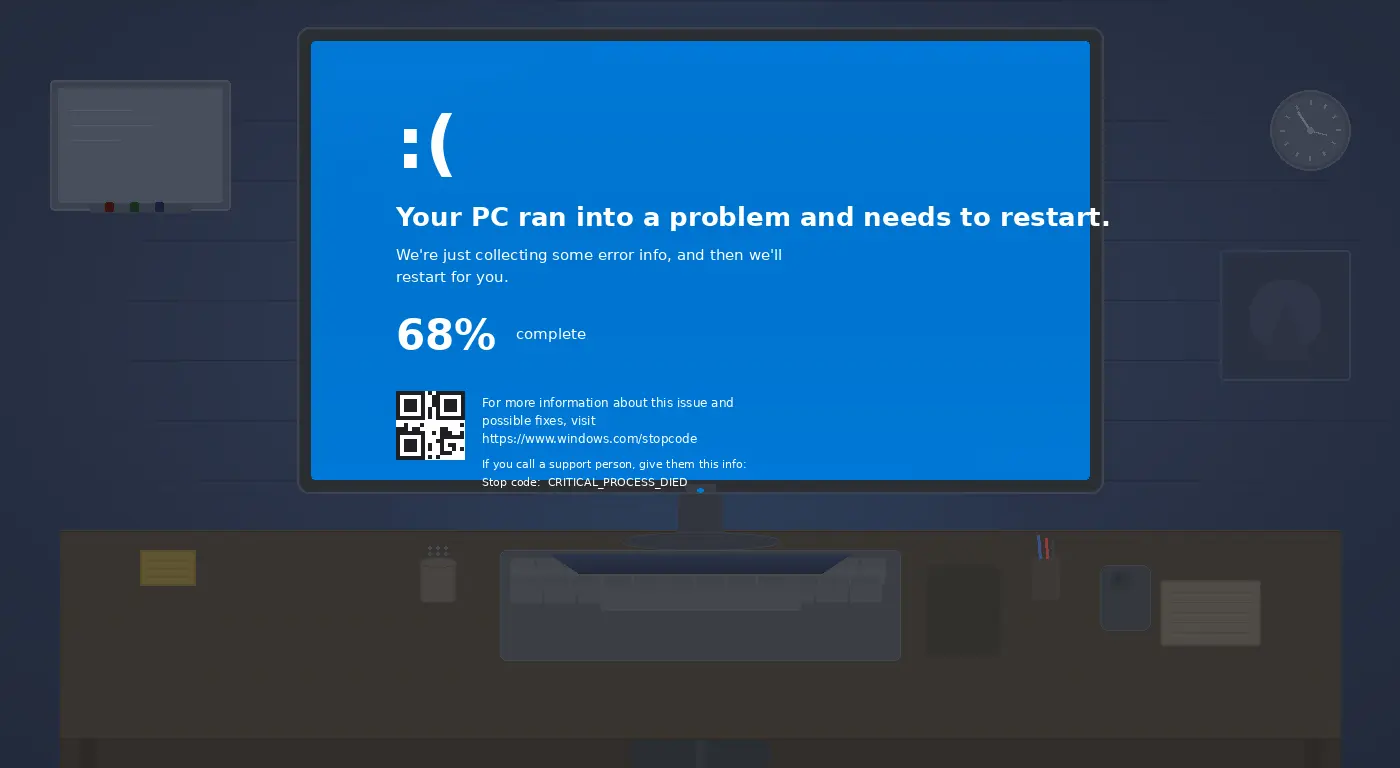
Windows 11’s blue screen shows a stop code and a QR code. The stop code is the most useful piece of information — it tells you the category of failure. Write it down or photograph it before the system restarts. The most common codes are MEMORY_MANAGEMENT, DRIVER_IRQL_NOT_LESS_OR_EQUAL, SYSTEM_THREAD_EXCEPTION_NOT_HANDLED, and CRITICAL_PROCESS_DIED.
Step 1: Note the Stop Code and Check Event Viewer
- After rebooting, press Win + X → Event Viewer.
- Navigate to Windows Logs → System and look for Critical or Error entries at the time of the crash.
- The event detail often names the specific driver or file that caused the crash — this is more useful than the stop code alone.
Fix 1: Update or Roll Back Drivers
- The most common BSOD trigger after a Windows update is a graphics or chipset driver that became incompatible.
- Press Win + X → Device Manager. Look for any devices with a yellow exclamation mark.
- Right-click the device → Update driver. If the BSOD started after a recent driver update, right-click → Properties → Driver → Roll Back Driver.
Fix 2: Run Windows Memory Diagnostic
- Press Win + R → type mdsched.exe → press Enter.
- Select Restart now and check for problems.
- The tool runs two passes of RAM tests. If it finds errors, one or more RAM sticks is failing. Try running with one stick at a time to identify the bad module.
Fix 3: Run System File Checker
- Open Command Prompt as Administrator.
- Run:
sfc /scannow - If SFC finds corrupted files, also run:
DISM /Online /Cleanup-Image /RestoreHealth - Restart after both commands complete.
Fix 4: Check for Overheating
- Download HWMonitor or HWiNFO and check CPU and GPU temperatures under load.
- CPU temperatures above 95°C at idle or 100°C under load indicate a cooling problem.
- Clean the laptop vents or desktop fan heatsink, and consider reapplying thermal paste on a CPU that is more than 3 years old.
Fix 5: Clean Boot to Find Software Conflicts
- Press Win + R → msconfig → Services tab → check Hide all Microsoft services → Disable all.
- Go to Startup tab → Open Task Manager → disable all startup programs.
- Restart. If BSODs stop, a startup program or third-party service was the cause — re-enable them in batches to identify the culprit.
Pro Tip: Install WhoCrashed (free tool). It reads Windows minidump files and tells you in plain English which driver caused the BSOD, saving hours of guesswork.
Related Guides
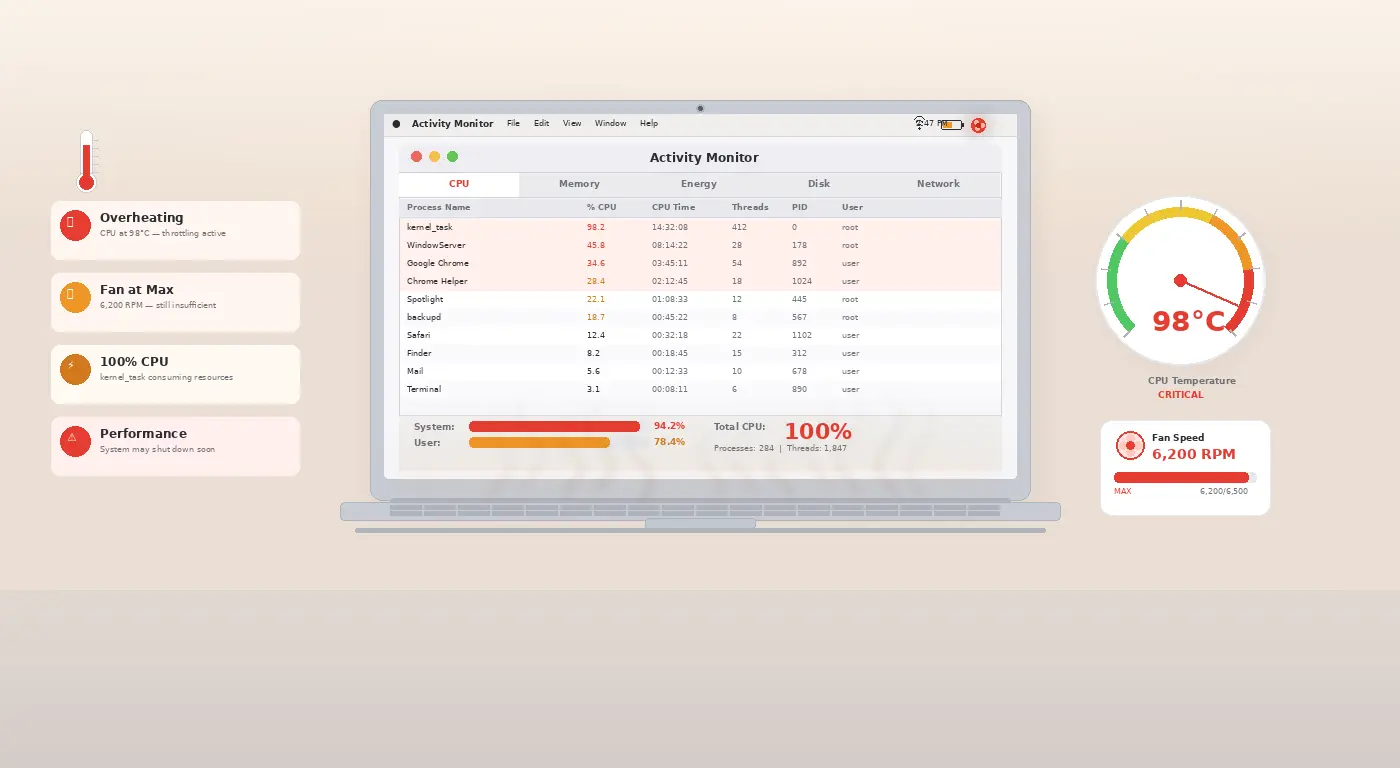
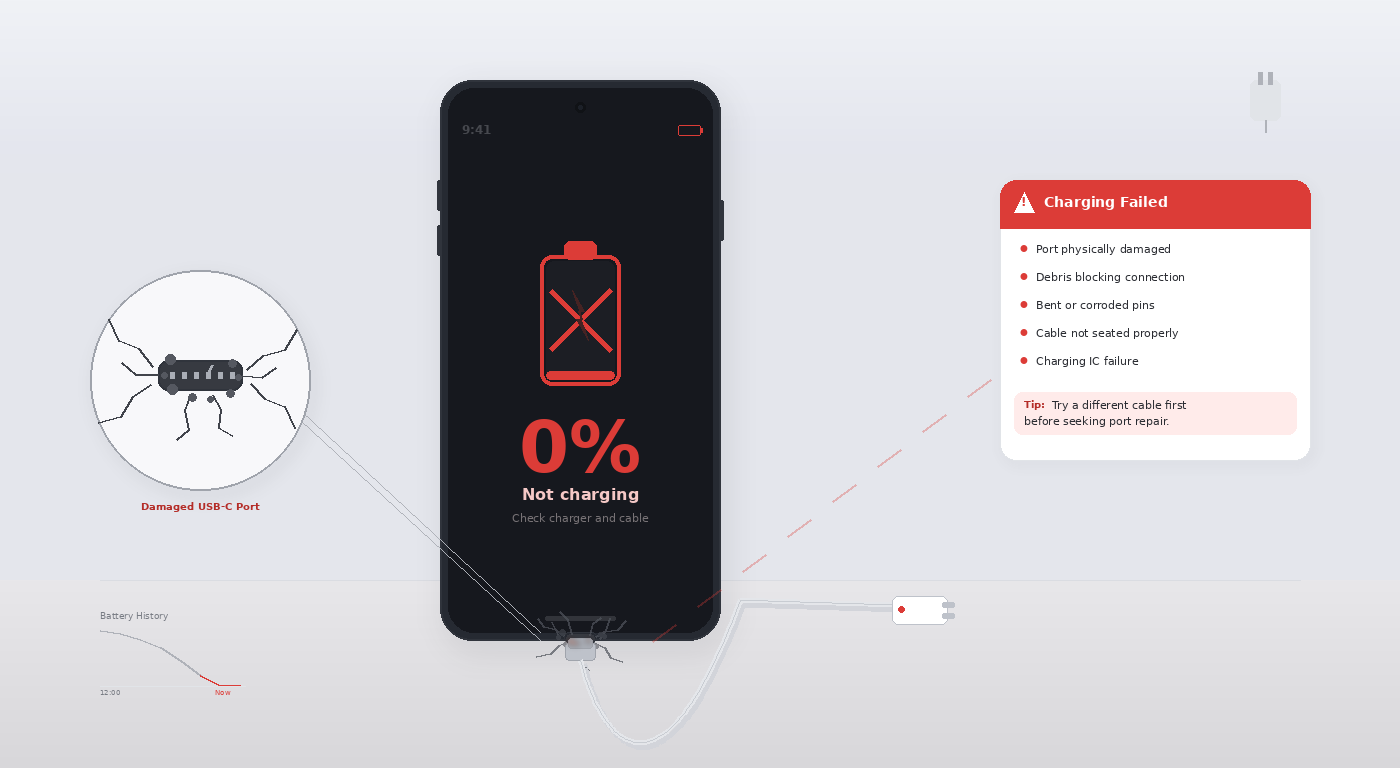
If your MacBook is having similar stability issues, see our MacBook overheating fix. For hardware charging problems, see our Android not charging guide.