Microsoft Teams Camera Not Detected Fixes
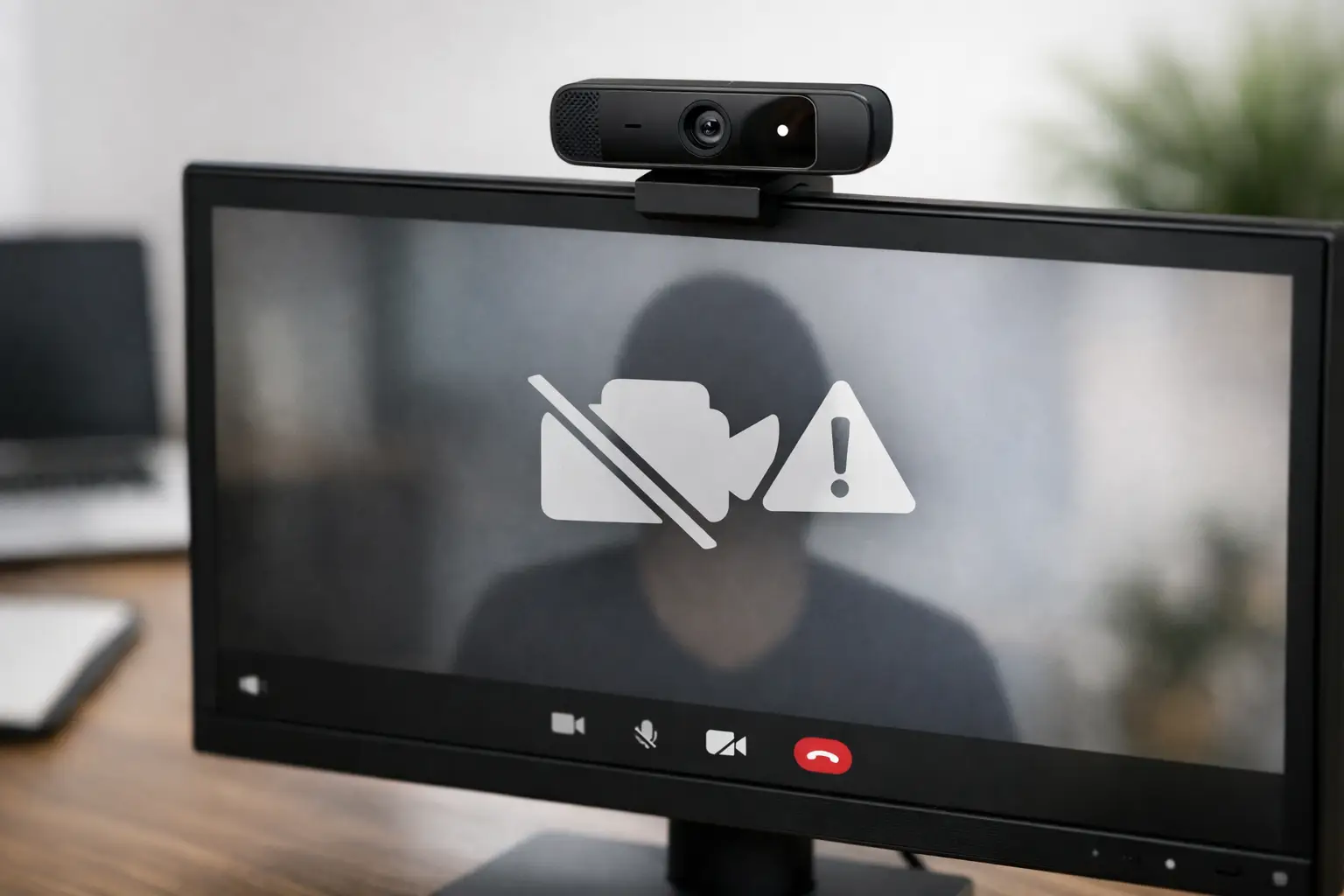
You join a meeting, click Camera, and Teams acts like your webcam does not exist. If you are dealing with the microsoft teams camera not detected problem, the fix is usually not the camera itself. Most of the time, it is a permission setting, another app using the camera, a bad device selection, or a Teams app glitch.
This guide is built to get you back on video fast. Start with the quickest checks first, then move into platform-specific fixes if Teams still cannot find your camera.
Microsoft Teams camera not detected: start with the fast checks
Before changing deeper settings, make sure Teams is failing because of software and not because the camera is physically unavailable.
First, fully quit Microsoft Teams. Do not just close the meeting window. Exit the app from the system tray on Windows or quit it completely on Mac, then reopen it. Teams sometimes fails to reload hardware correctly after sleep mode, docking changes, or a second monitor setup.
Next, unplug and reconnect your webcam if you use an external one. If your laptop has a built-in camera, restart the device instead. A clean restart often clears driver conflicts and releases the camera if another app is holding it.
Then test the camera outside Teams. Open the Camera app on Windows or Photo Booth on Mac. If the camera does not work there either, the issue is at the system level, not a Teams-only problem. If it works in another app but not in Teams, focus on Teams settings and permissions.
You should also close any app that might be using the webcam. Zoom, Google Meet, Discord, Slack, OBS, browser tabs with camera access, and even some antivirus tools can block Teams from taking control. Webcams usually do not handle app-sharing well. One app wins, and the other says no device is available.
Check the camera selected inside Teams
Sometimes Teams detects a camera, just not the right one.
Open Teams, go to Settings, then Devices. Under Camera, make sure the correct webcam is selected. This matters if you use a laptop plus an external webcam, a docking station, or a virtual camera from streaming software. Teams may default to a disconnected device or a software camera that is no longer active.
If you are already in a meeting, open More options, then Device settings, and check the selected camera there too. Switching to another available device and then back again can force Teams to refresh detection.
If the camera dropdown is blank, that usually points to permissions, drivers, or a hardware access conflict.
Fix camera permissions on Windows
Windows privacy settings are one of the most common causes when microsoft teams camera not detected errors show up without warning.
Go to Settings, then Privacy & security, then Camera. Make sure Camera access is turned on. After that, confirm Let apps access your camera is enabled. If you use the desktop Teams app, also check Let desktop apps access your camera. Teams can be installed in different ways, so one permission being off is enough to break detection.
If you use Teams in a browser, the browser also needs camera access. Open your browser site settings and confirm camera permission is allowed for Teams. If your browser is blocked at the Windows level, Teams on the web will fail too.
There is one catch here. If you are using a work or school device, your IT admin may control camera privacy settings with policy restrictions. In that case, you might see the setting grayed out or Teams may never request access properly. You can still test with another app, but the final fix may require admin help.
Fix camera permissions on Mac
On Mac, Teams can look broken when macOS is simply blocking access.
Open System Settings, then Privacy & Security, then Camera. Make sure Microsoft Teams is allowed. If you use Teams in Chrome, Edge, or Safari, give that browser camera access too. A lot of users miss this because they switch between the desktop app and web version while troubleshooting.
If Teams already has permission but still cannot detect the camera, turn the permission off, quit Teams completely, reopen it, and enable permission again. macOS sometimes needs that reset before the app re-requests camera access correctly.
Also check Screen Time restrictions if they are enabled. Content and Privacy limits can quietly block camera use, especially on shared family Macs or school-managed devices.
Update or reinstall the camera driver
If the camera works inconsistently or disappears after updates, the driver may be the issue.
On Windows, open Device Manager and expand Cameras or Imaging devices. Find your webcam, right-click it, and choose Update driver. If that does not help, uninstall the device and restart your PC. Windows will usually reinstall the driver automatically.
This step matters most for USB webcams, older laptops, and systems that recently updated Windows. A driver can remain partially installed or become unstable after sleep, docking, or patch changes.
If you use a branded external webcam from Logitech, Razer, Dell, Lenovo, or another manufacturer, the generic Windows driver may not always behave well with Teams. Installing the latest device software can help, but only if the camera also fails outside Teams or keeps disconnecting.
On Mac, there is no traditional driver reinstall for most cameras. If the camera hardware works in one app but not another, permissions or app conflicts are more likely than driver problems.
Clear the Teams app cache
Teams cache files can break device detection, especially after app updates or account switching.
On Windows, quit Teams fully, including from the system tray. Then clear the Teams cache from its local app data folder. On Mac, quit Teams and remove its cache files from the user Library containers and caches area. After that, reopen the app and sign in again if needed.
This is one of those fixes that sounds minor but often works when Teams settings look correct and the camera still does not appear. Cache corruption can cause strange device behavior, not just loading issues.
If you do not want to manually remove files, another option is to sign out of Teams, restart your device, and sign back in. It is less thorough, but sometimes enough.
Try Teams in the browser
This is the fastest way to narrow down whether the problem is the app or the account.
Open Teams in Chrome or Edge and join a meeting there. If the camera works in the browser but not in the desktop app, the issue is likely tied to the installed Teams client, its cache, or local permissions. If the camera fails in both places, look harder at OS-level permissions, device conflicts, or hardware problems.
Chrome and Edge tend to behave better with Teams than some other browsers. Safari support can be less forgiving depending on version and permissions state.
Disable virtual cameras and security tools
Many creators and remote workers have software installed that adds a virtual webcam. OBS, Snap Camera alternatives, screen recording tools, and conferencing plugins can interfere with Teams detection.
If Teams keeps selecting a fake camera or no camera at all, disable or uninstall virtual camera software temporarily. Then reopen Teams and check device settings again.
Security software can also block webcam access. Some antivirus suites include webcam protection that silently denies apps unless explicitly trusted. If you recently installed or updated security software, that is worth checking. The trade-off is obvious here: do not leave protection disabled longer than needed. Test, confirm the cause, and then whitelist Teams if your software supports that.
Reinstall Microsoft Teams
If everything else checks out and the camera still is not detected, reinstall Teams.
Remove the app completely, restart your computer, and install the latest version. This helps if your current installation is damaged, outdated, or carrying over broken settings from a previous version. It is especially useful if the issue started right after an update or after moving between personal and work accounts.
If your organization manages Teams, you may need to use the company portal or software center version instead of downloading a public installer. Mixed install types can create odd behavior.
When the problem is not on your device
Sometimes the camera is fine, Teams is fine, and the meeting policy is the problem.
Work and school accounts can have admin policies that disable video or restrict device access. In those cases, your camera may appear unavailable only in one organization or tenant while working perfectly in a personal Teams meeting. That is a strong sign the issue is account-level, not device-level.
There are also moments when Teams itself has temporary service issues. Those are less common than local permission problems, but if several people in your organization are reporting camera failures at the same time, it may not be you.
What usually fixes it fastest
For most people, the fastest path is simple: quit Teams fully, close other camera apps, check camera permissions, verify the correct webcam is selected, and restart the computer. If that does not work, clear the Teams cache and test in a browser.
That order matters because it rules out the most common causes without wasting time on deeper fixes too early.
If your camera works everywhere except Teams, do not assume the hardware is bad. Teams is picky about permissions, app conflicts, and cached settings, and one small mismatch is enough to make the camera disappear. Work through the checks one by one, and you will usually have video back before the next meeting starts.













