Google Drive Not Syncing — Complete Fix (2025)
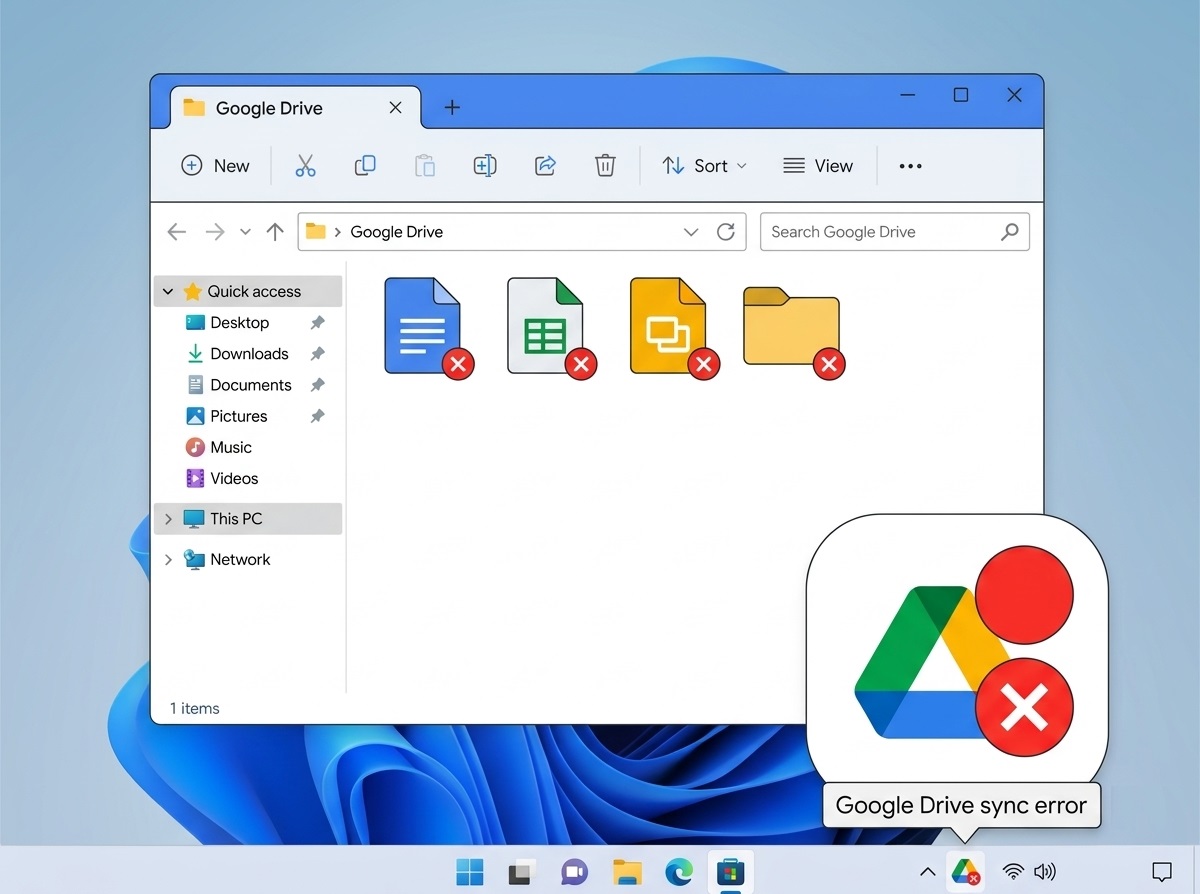
Why Google Drive Stops Syncing
Five main causes: paused sync, full storage quota, network/firewall issues, file name conflicts, or a Drive for Desktop crash.
Fix 1: Check if Sync Is Paused
Click the Google Drive icon in system tray → Check for “Sync is paused” → Click “Resume.” Sync auto-pauses when storage is almost full.
Fix 2: Check Your Storage Quota
Go to drive.google.com/settings/storage. If your 15 GB quota is full, new files will not sync. Delete Gmail attachments or upgrade to Google One.
Fix 3: Restart Drive for Desktop
System tray → Drive icon → Settings → Quit Google Drive. Reopen from Start menu. A simple restart resolves 40% of sync issues.
Fix 4: Check for File Name Issues
Drive cannot sync files containing: \ / : * ? " < > |. Files longer than 255 characters in path also fail silently.
Fix 5: Sign Out and Back In
Drive for Desktop → Settings → Preferences → Account → Sign Out → Sign back in. Refreshes the OAuth token and re-establishes sync permissions.
Fix 6: Reinstall Drive for Desktop
Uninstall completely → Reinstall from drive.google.com/drive/apps. Your files are on Google’s servers — uninstalling the client does not delete them.