NordVPN Not Connecting on Windows? Fix It Fast
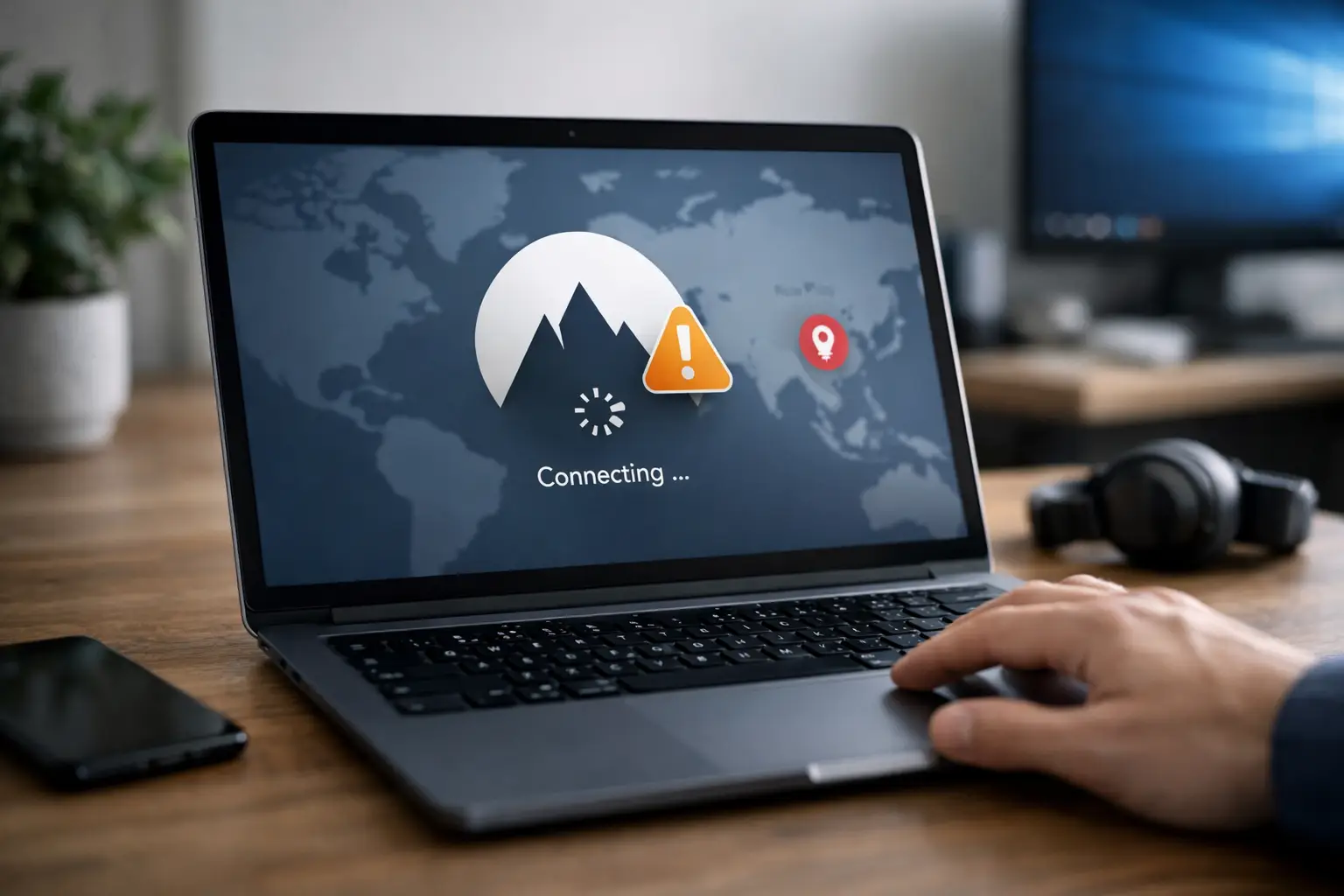
When NordVPN not connecting Windows becomes the problem that stops your work, streaming, or browsing, the fix is usually simpler than it looks. In most cases, the issue comes down to a stuck app process, a broken VPN protocol setting, a Windows network adapter problem, or security software getting in the way.
This guide is built to get you connected again quickly, without forcing you through technical jargon or settings you do not need.
Why NordVPN stops connecting on Windows
If NordVPN opens but stays on “connecting,” disconnects right away, or never reaches a server, the failure usually happens in one of three places. The app itself may be stuck, Windows may be blocking the virtual adapter it needs, or your current network may be interfering with VPN traffic.
That is why random trial and error often wastes time. A better approach is to start with the fastest fixes, then move to the settings most likely to matter.
1. Force close NordVPN and restart your PC
Start with the obvious fix because it works more often than people expect. Close NordVPN completely, not just the app window. Open Task Manager, look for NordVPN processes, and end them if they are still running.
Then restart your computer and open NordVPN again. Try connecting to a nearby server instead of using specialty servers right away. If the app was hung in the background, this often clears it.
2. Check whether your internet works without the VPN
Before changing app settings, confirm that your connection works normally with NordVPN turned off. Open a browser and load a few sites. If your internet is already unstable, NordVPN may fail simply because Windows is dropping the network.
If pages do not load, restart your router or switch networks if you can. Testing with a mobile hotspot is useful here. If NordVPN connects on hotspot but not on your home or office Wi-Fi, the problem is probably the network rather than the app.
3. Switch the VPN protocol
This is one of the most effective fixes when NordVPN not connecting on Windows keeps happening. NordVPN uses different protocols, and some networks handle them better than others.
Open the NordVPN app settings and look for VPN protocol options. Try NordLynx first if it is not already selected. If NordLynx fails, switch to OpenVPN UDP. If that still does not work, try OpenVPN TCP.
There is a trade-off here. NordLynx is usually fastest, but some restrictive networks block it. OpenVPN TCP is often slower, but it can connect more reliably on difficult networks.
4. Change the server and region
Sometimes the issue is not Windows or your app. It is the specific server you are trying to use. If you always hit Quick Connect, manually pick a different city or a nearby country and test that instead.
Avoid specialty options like Double VPN or P2P until the basic connection works. Those features are useful, but they can add another layer of troubleshooting when all you need is a standard connection.
5. Disable Threat Protection, Kill Switch, or Meshnet temporarily
Extra features can occasionally interfere with connection setup, especially after an app update or Windows change. In NordVPN settings, temporarily turn off Threat Protection, Kill Switch, and Meshnet if they are enabled.
Then try connecting again. If the VPN works after that, turn features back on one at a time so you can identify what caused the conflict. This matters because you may not need to leave everything off – just the one feature creating the problem.
6. Run NordVPN as administrator
Windows sometimes limits the app from changing network settings unless it has elevated permissions. Right-click the NordVPN app and choose Run as administrator.
If that fixes the issue, you are likely dealing with a permissions problem rather than a network failure. This can happen after updates, account changes, or stricter Windows security settings.
7. Check Windows firewall and antivirus software
Third-party antivirus suites and aggressive firewall settings are common reasons a VPN will not connect. They may block the NordVPN app, its background service, or the VPN tunnel itself.
Temporarily disable your antivirus and firewall just long enough to test the connection. If NordVPN works, add it as an allowed app in your security software before turning protection back on.
Be careful with corporate laptops here. If the device is managed by your employer or school, security rules may be enforced centrally, and changing them may not be possible.
8. Reset the TAP or NordVPN network adapter
If NordVPN keeps spinning without connecting, the Windows virtual adapter may be broken or disabled. This is one of the most common technical causes behind repeated connection failure.
Open Device Manager and expand Network adapters. Look for VPN-related adapters, including TAP, TUN, or NordVPN network entries. If one looks disabled, enable it. If it shows an error, uninstall it and restart your PC so Windows can reinstall it.
You can also use the built-in Windows network reset if multiple adapters seem broken. That is more aggressive, so use it after the simpler steps. It can remove saved network components and force a fresh setup, which helps when the VPN adapter is corrupted.
9. Flush DNS and reset network settings
When Windows network components get stuck, a command-line reset can save time. Open Command Prompt as administrator and run the standard network reset commands for flushing DNS, releasing and renewing IP settings, and resetting Winsock.
This step is especially useful if NordVPN used to work and then suddenly stopped after a Windows update, driver change, or network switch. It clears out old network state that may be interfering with the connection.
After running the commands, restart your PC before testing NordVPN again.
10. Reinstall NordVPN completely
If the app files or services are damaged, updating the app may not be enough. Remove NordVPN from Windows, restart your computer, and install the latest version fresh.
A clean reinstall often fixes hidden service failures, broken login states, and adapter issues that do not respond to normal restarts. If you want the best chance of success, remove leftover NordVPN network entries during the uninstall process if Windows still shows them after the app is gone.
11. Check for Windows updates and driver problems
Outdated network drivers can break VPN behavior, especially on laptops with older Wi-Fi chipsets. Open Windows Update and install any pending system updates first. Then check your network adapter driver in Device Manager.
If the problem started right after a driver update, rolling back the driver may help more than updating it again. If the driver is old, update it. It depends on what changed before the issue started.
12. Test on another network
This step tells you whether the fault is local or broader. Try NordVPN on a different Wi-Fi network or mobile hotspot. If it connects there, your current network is likely blocking VPN traffic or handling DNS badly.
Public Wi-Fi, school networks, hotel internet, and some ISP setups can all interfere with VPN connections. In that case, protocol switching usually helps, but not always. Sometimes the network simply does not allow reliable VPN traffic.
When NordVPN connects but does not work properly
Sometimes the connection succeeds, but nothing loads afterward. That points to a different issue than a full connection failure.
First, disable the Kill Switch if it is on and reconnect. Then test a different protocol and server. If websites still do not load, the problem may be DNS-related rather than a failed VPN tunnel.
You should also check whether your internet works normally the moment you disconnect from NordVPN. If everything returns right away, focus on protocol, DNS, and security software instead of reinstalling Windows network components again.
If NordVPN still is not connecting on Windows
If none of the fixes above work, narrow the problem before going further. Ask three quick questions: does your internet work without the VPN, does NordVPN connect on another network, and did the issue start after a Windows or app update?
Those answers usually point to the right next move. If it fails everywhere, reinstalling the app and resetting Windows networking are the strongest local fixes. If it only fails on one network, that network is the real issue. If it started after an update, driver rollback or protocol changes are more likely to help than random app tweaks.
For most users, the fastest working path is this: restart the app and PC, switch protocols, test another server, disable conflicting security features, then reinstall NordVPN if needed. That order avoids the slowest fixes until they are actually necessary.
If you are trying to get back online fast, do not overcomplicate it. Start with the changes that affect the connection path first, and let each test tell you what to try next.













